Settings
The Settings page holds the settings of your own user account: your personal details, the notifications you receive, your password and two-factor authentication, and display options. Changes here only affect you, not the rest of your team.
To open it, click the gear icon at the bottom of the left sidebar. The page has four tabs: My details, Notifications, Security and Appearance.
My details
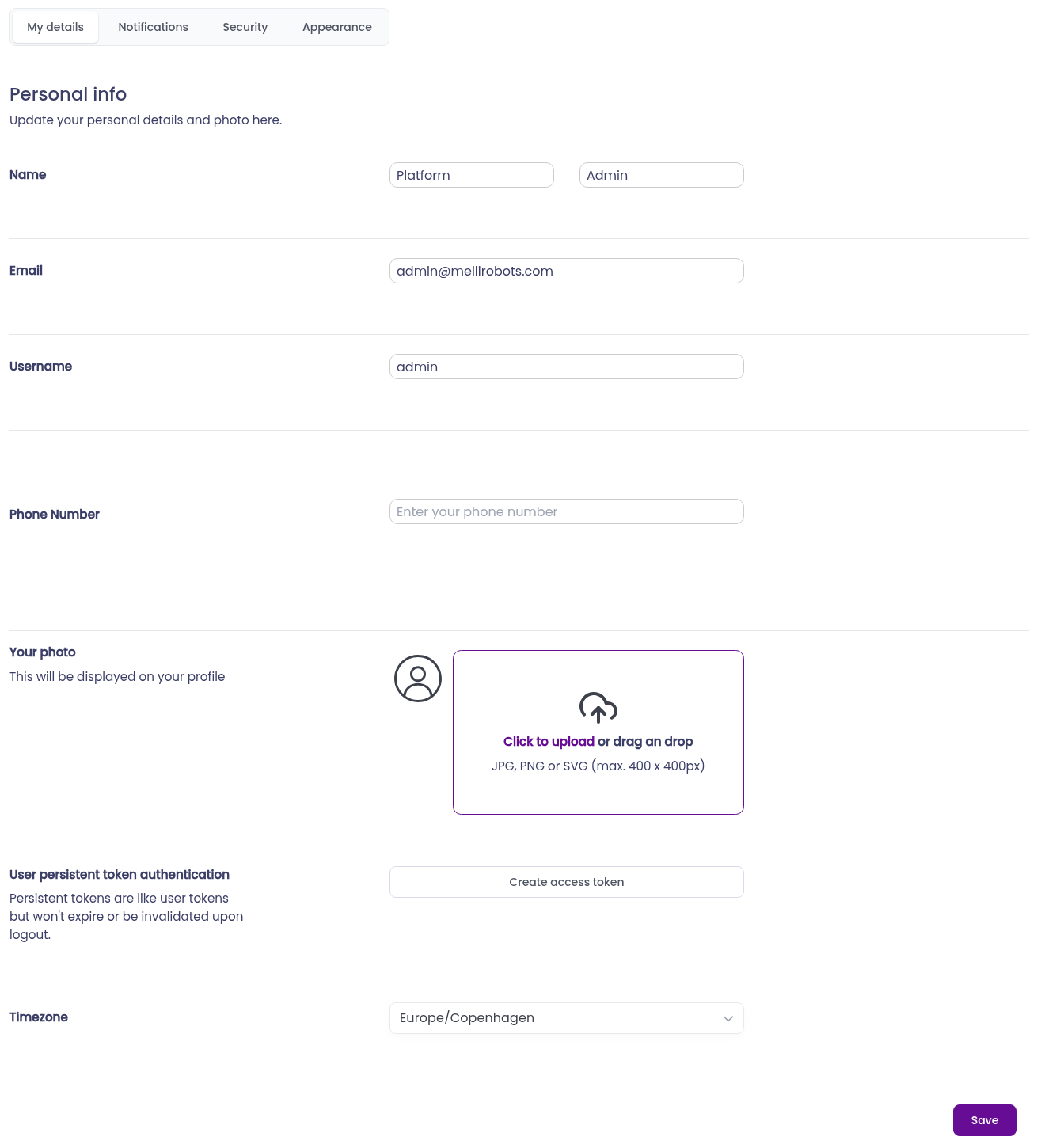
In this tab you can update:
- Name: your first and last name.
- Email: the address you log in with and where email notifications are sent.
- Username: your username.
- Phone Number: the number where SMS notifications are sent. See Verify your phone number.
- Your photo: the picture shown on your profile. Click the upload area or drag an image onto it. JPG, PNG and SVG files up to 400 x 400 pixels are supported.
- Timezone: the timezone used for the dates and times you see.
Verify your phone number
You only receive SMS notifications once your phone number is verified.
- Enter your phone number in international format, without spaces (for example +4512345678), and click
Save. - Next to the number, click Click here to verify. Meili sends you a code by SMS.
- Enter the code and click
Verify.
Access token
An access token lets another system, such as a WMS or your own scripts, use the Meili API on your behalf. Unlike your normal login, it doesn’t expire and keeps working when you log out.
To create one:
- Under User persistent token authentication, click
Create access token. - Enter a name for the token, for example WMS integration, and click
Create token. - Copy the token that appears and store it somewhere safe. It is shown only once.
- Click
Done.
You can have one access token at a time. The table shows its name, when it was created and the site it belongs to. To revoke it, click the trash icon and confirm. Any system that uses it stops working, and you can then create a new one.
Anyone with your access token can act as you in Meili. Don’t share it or store it in plain text where others can read it.
Notifications
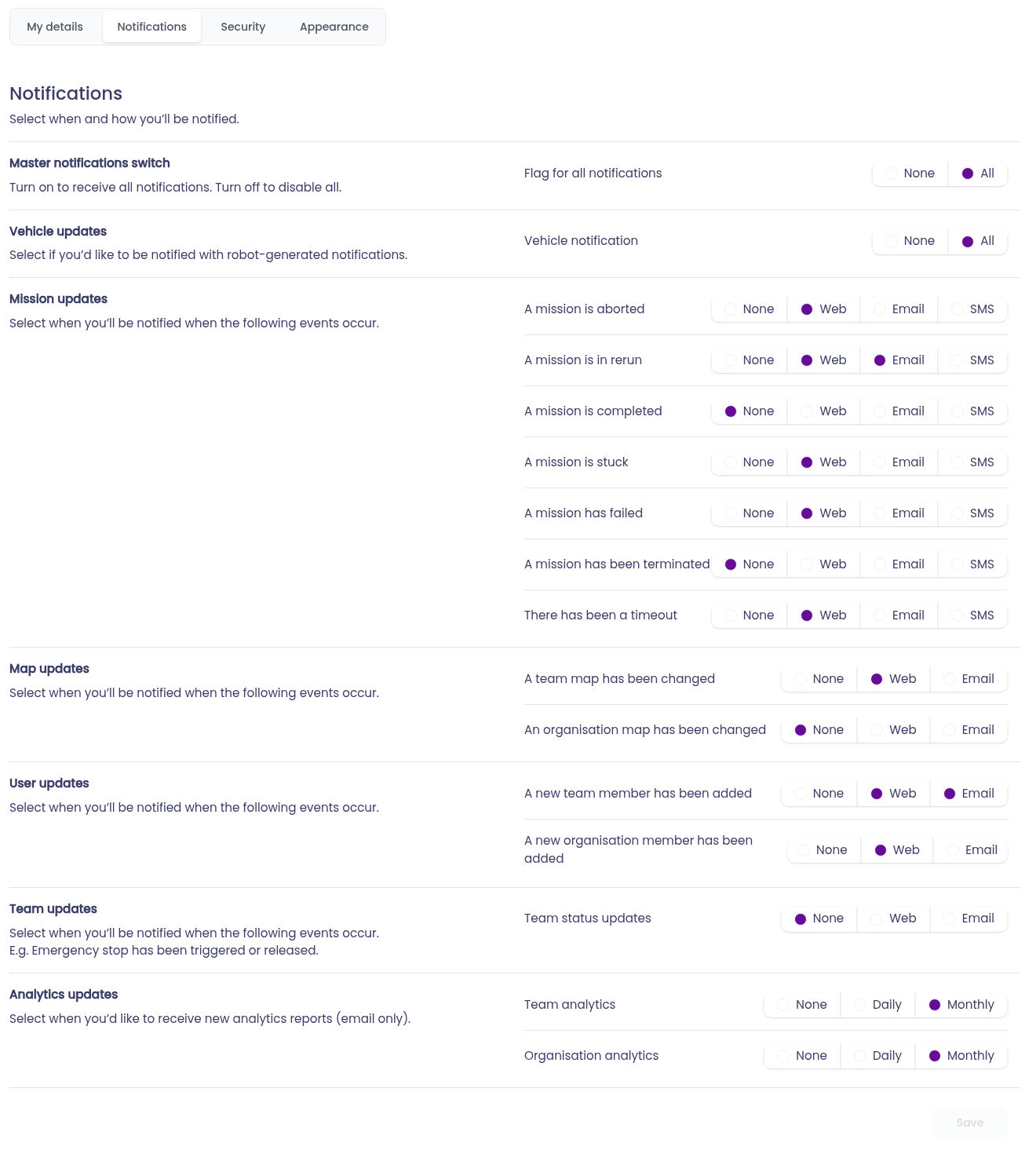
In this tab you choose which events you are notified about, and how. For most events you can pick one or more channels:
- Web: the notification appears in the dashboard.
- Email: the notification is sent to your email address.
- SMS: the notification is sent to your phone. Only available for mission updates, and only if your phone number is verified.
Select None to stop notifications for an event.
Security
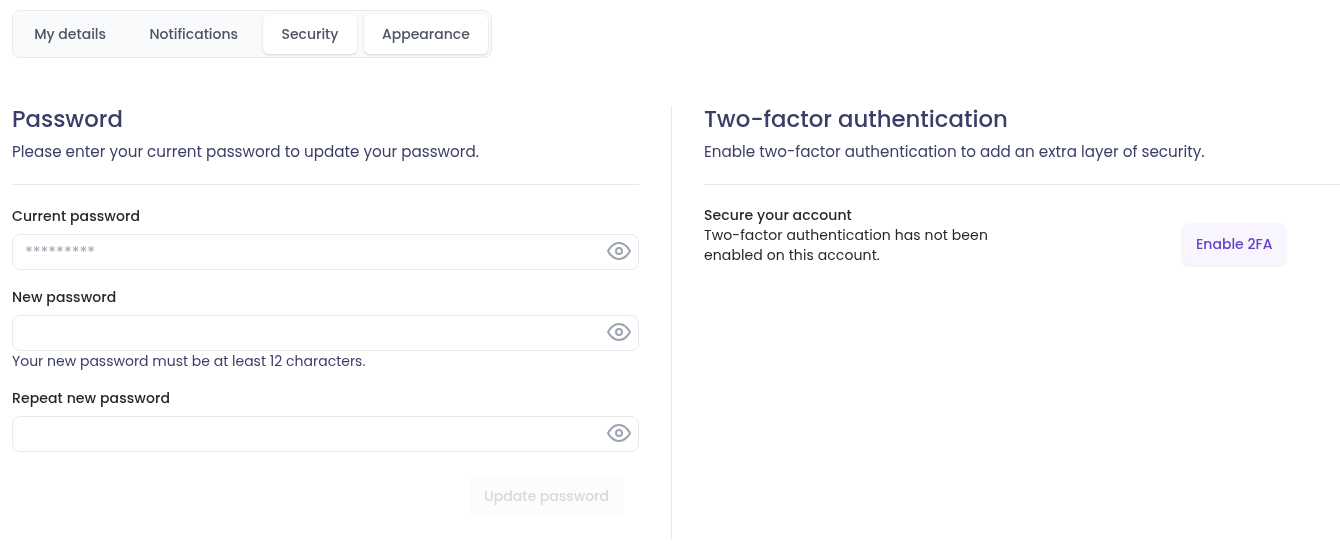
Change your password
- Enter your Current password.
- Enter a New password of at least 12 characters, and type it again in Repeat new password.
- Click
Update password.
Two-factor authentication
Two-factor authentication (2FA) adds an extra step when you log in: besides your password, you enter a six-digit code from an authenticator app on your phone. This keeps your account safe even if someone learns your password.
You need an authenticator app such as Google Authenticator, Microsoft Authenticator or Duo Mobile.
To enable it:
- In the Security tab, click
Enable 2FA.
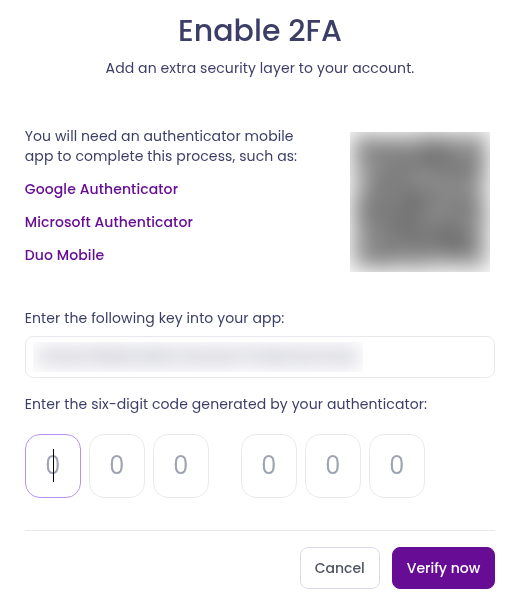
- In your authenticator app, scan the QR code. If you can’t scan it, type in the key shown below the QR code instead.
- Enter the six-digit code that the app shows, and click
Verify now. - A list of backup codes appears. Click
Downloadto save them as a file, and keep it somewhere safe.
From then on, after entering your password at login, you are asked for the code from your authenticator app.
If you lose your phone, you can log in by entering one of your backup codes instead of the app code. Each backup code works once. Backup codes can’t be recovered, so store them safely.
To turn 2FA off, click Disable 2FA in the Security tab and confirm. You will no longer be asked for a code when logging in.
Appearance
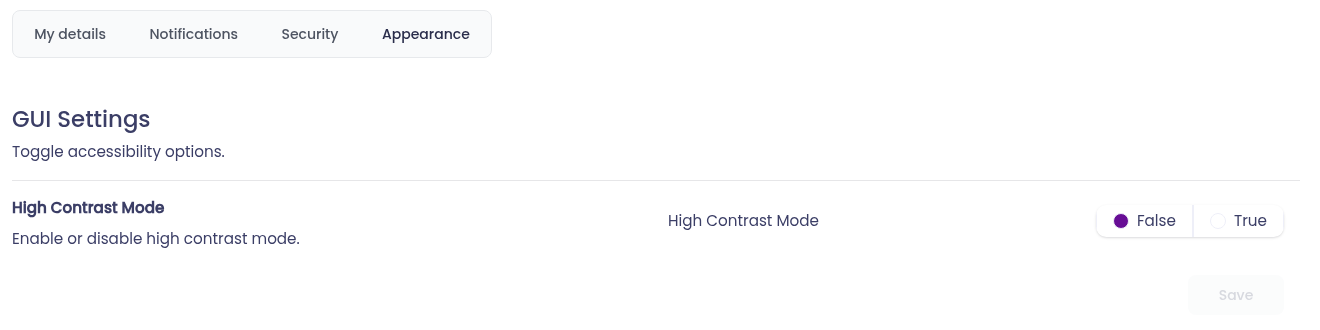
Set High Contrast Mode to True to make the dashboard easier to read, then click Save. The page reloads with the new colours. Set it back to False to return to the standard look.