Missions
The Missions tab lists your team’s missions in a table, so you can look up any mission, see what happened to it, and cancel missions that haven’t finished. Unlike mission presets, which are templates, each row here is a mission that was actually created. To create a new mission, see Missions.
To open it, go to Actions inside your team and select the Missions tab.
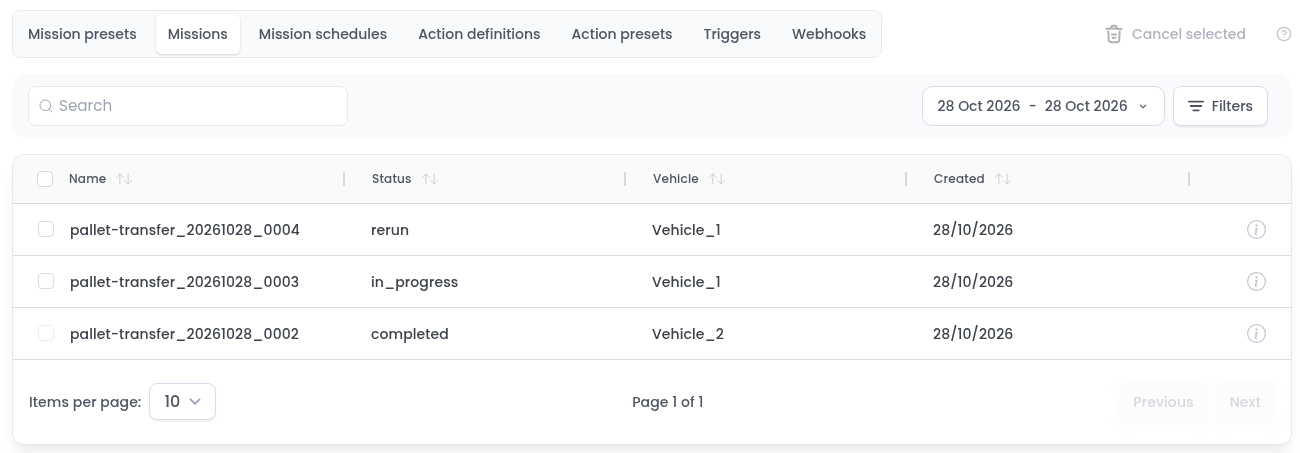
Each row shows the mission Name, its Status, the Vehicle it was assigned to and the date it was Created. Click a column header to sort by it.
Find a mission
- Search: type part of a mission name.
- Dates: by default, only today’s missions are shown. Click the date range to pick other dates, or use a shortcut such as Yesterday, This week or Last month, then click
Apply. - Filters: show only the missions of certain vehicles, or with certain statuses. Select the options and click
Save.
Mission statuses
| Status | Meaning |
|---|---|
| created, pending, sent | The mission is waiting to start or has just been sent to the robot. |
| rerun | The mission couldn’t start yet, for example because no robot is available or its destination is busy. Meili keeps trying automatically. The mission’s log shows the reason. |
| in_progress | A robot is carrying out the mission. |
| paused | The mission is paused. |
| completed | The mission has finished. |
| failed | The mission couldn’t be completed. |
| aborted, terminated | The mission was stopped before it finished. A mission is terminated when it stays in the same status for too long. See Mission timeouts. |
| await_abort, await_terminate | The mission is waiting for a user to decide what to do with it. See Mission timeouts. |
| offline, completed_offline, failed_offline | The mission ran while the robot was offline. |
Mission details
Click the info icon at the end of a row to open the mission details.
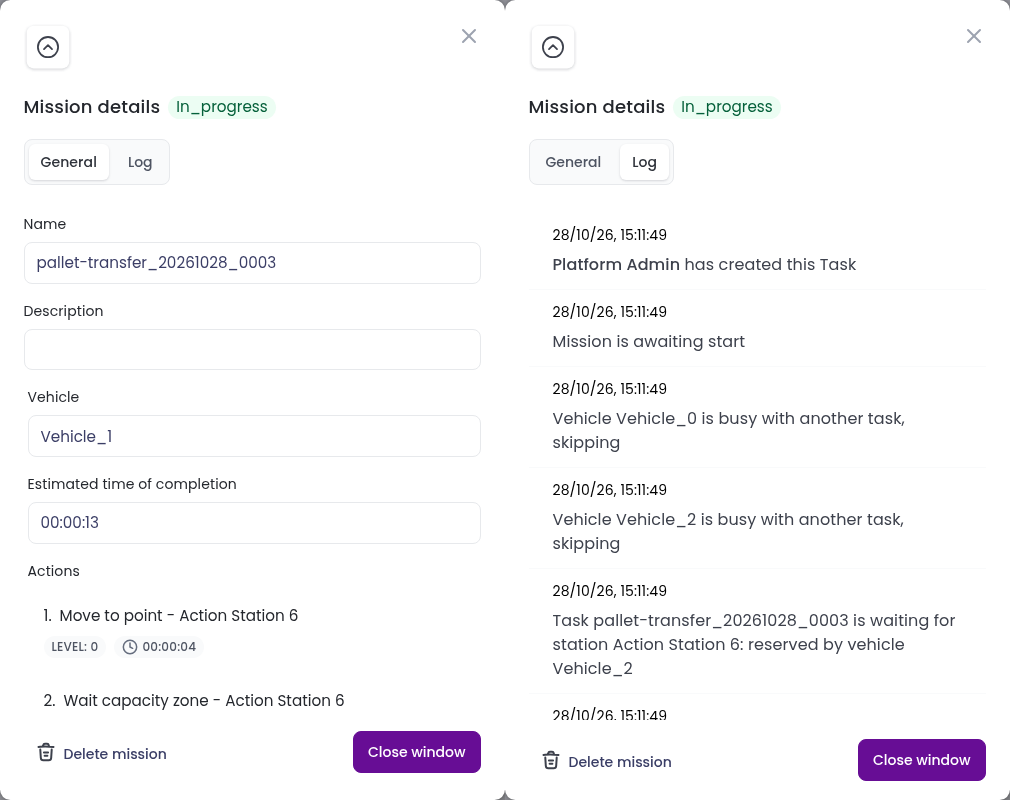
- General shows the mission’s name, description, vehicle, estimated time of completion and its list of actions.
- Log shows everything that happened to the mission, with times. Check it first when a mission is waiting or didn’t go as expected. For example, it shows when a mission is waiting for a station that another robot has reserved.
Cancel missions
- Select the missions with the checkboxes on the left. Missions that have already finished can’t be selected.
- Click Cancel selected.
- Confirm in the popup.
Cancelling can’t be undone. To cancel a single mission, you can also open its details and click Delete mission.