Webhooks
A webhook is a message that Meili sends to your system as soon as something happens, for example when a mission starts or finishes. With webhooks, external systems such as a Warehouse Management System (WMS) or an ERP stay up to date without having to ask the Meili API for updates again and again.
To open the list, go to Actions inside your team and select the Webhooks tab.
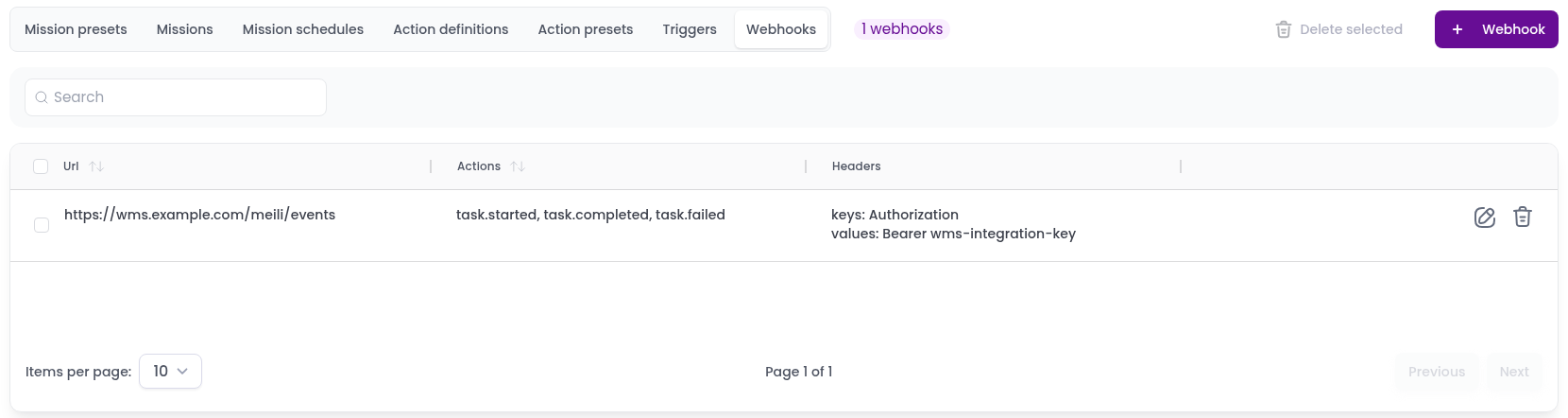
Each row shows the webhook’s Url, the events it is sent for under Actions, and its Headers.
Create a webhook
- Click
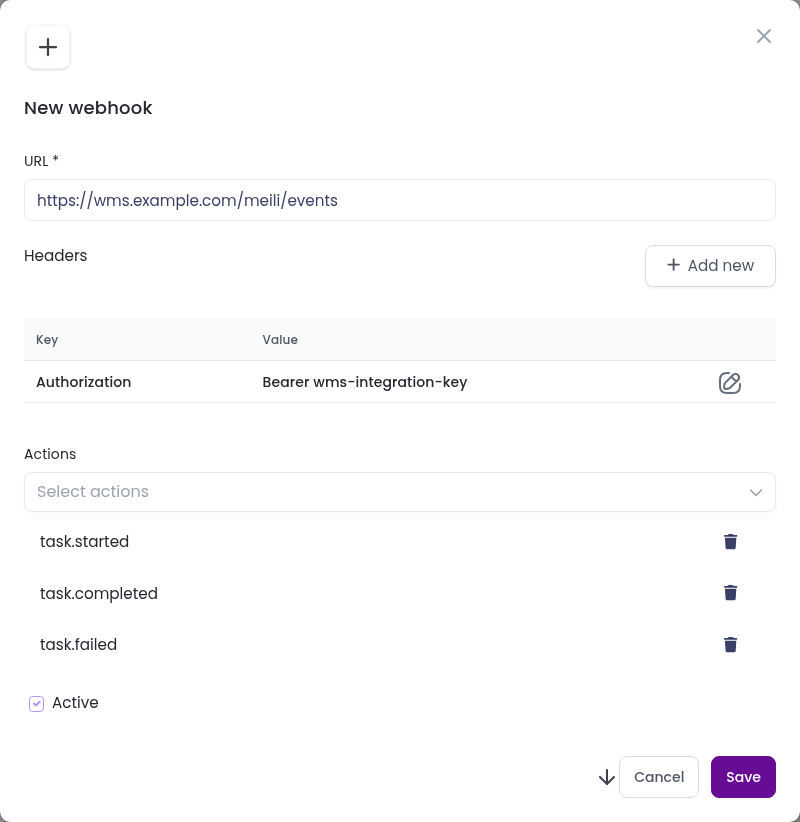
+ Webhook. The New webhook dialog opens. - In URL, enter the web address of your system where Meili should send the messages.
- If your system needs extra information with each message, for example a key to authenticate, click
+ Add newunder Headers, enter the Key and Value and clickAdd. Repeat for each header. - In Actions, choose the events that send the webhook. You can choose several.
- Check Active to start sending the webhook straight away.
- Click
Save.
Webhook events
| Event | Sent when |
|---|---|
task.started |
A mission starts. |
task.completed |
A mission finishes. |
task.failed |
A mission fails. |
task.stuck |
A mission has made no progress for a while. See Mission timeouts. |
task.timeout |
A mission is stopped, or waits for a decision, because it stayed in the same status for too long. See Mission timeouts. |
subtask.started |
A robot starts one of the actions of a mission. |
subtask.completed |
A robot finishes one of the actions of a mission. |
vehicle.connected |
A robot connects to Meili. |
vehicle.disconnected |
A robot loses its connection to Meili. |
fleet.connected |
The fleet connects to Meili through the Meili SDK. |
fleet.disconnected |
The fleet loses its connection to Meili. |
Test a webhook
To see what Meili sends before you connect your own system, use a free service such as Webhook.site. It gives you a temporary URL and shows every message it receives.
- Create a webhook with the URL from Webhook.site.
- Do something in the dashboard that matches one of the webhook’s events, for example run a mission.
- Check on Webhook.site that the message arrived and what it contains:

Edit or delete a webhook
To change a webhook, click the edit icon on its row, change what you need and click Save.
To delete a webhook, click the bin icon on its row and confirm. To delete several at once, select them with the checkboxes and click Delete selected. Meili stops sending messages to the webhook’s URL straight away.