Configuring Meili Agent
Configuration files
When it starts, Meili Agent reads two configuration files. Both are generated automatically by Meili CLI during the installation:
~/.meili/cfg.yaml: the connection to Meili FMS (site, fleet token and fleet identifiers). It is written bymeili-cli init. Do not modify it by hand.config.yaml, in theconfigdirectory of themeili-agentpackage: the vehicles of the fleet and their topics. It is written bymeili-cli setupfrom the setup of your communication channel.
Vehicles file
In config.yaml, each vehicle of the fleet is defined with its uuid, token and prefix. The prefix is the namespace of the robot’s topics and actions (for example /robot1). Leave it empty when the robot does not use a namespace. You can also set specific topics for individual vehicles if there is more than one type of vehicle in the fleet.
This configuration is managed from the communication channel. After changing it, run meili-cli setup again to download the new configuration.
To add new vehicles to your fleet, see Vehicles.
Example of one vehicle
vehicles:
- uuid: bae59388be704a6e89e5c8a7907b7424
  token: 3916580dc7297fcc5254c8d93c9c5d4e79b32628
  prefix:
fleet: e9570c71cd426e16eb5cdedfcc8b1ede9329993c
mqtt_id: meili-agent-71a705fb-bf62-48bb-8999-c29bbf116f38
Example of multiple vehicles
vehicles:
- uuid: bae59388be704a6e89e5c8a7907b7424
  token: 3916580dc7297fcc5254c8d93c9c5d4e79b32628
  prefix: /robot1
- uuid: 8b14591a4dbfd8b425ba2fe39f9dfa11
  token: 06305d21094f7663fea4676bd2c2397a69264bee
  prefix: /robot2
- uuid: fe5fbc57c7c4a896342bd94b55af5e73
  token: 53b3c15e048213bbf7470b9c3e63d838db252dbb
  prefix: /robot3
fleet: e9570c71cd426e16eb5cdedfcc8b1ede9329993c
mqtt_id: meili-agent-71a705fb-bf62-48bb-8999-c29bbf116f38
Example of vehicle with specific topic
vehicles:
- uuid: bae59388be704a6e89e5c8a7907b7424
  token: 3916580dc7297fcc5254c8d93c9c5d4e79b32628
  prefix: /robot1
  topics:
    battery:
      topic: /battery_status
      messageType: sensor_msgs/BatteryState
fleet: e9570c71cd426e16eb5cdedfcc8b1ede9329993c
The topics set for a vehicle override the agent’s default topics. The rest of the topics keep their default value. The vehicle’s
prefixis added in front of every topic, including the overridden ones.
Topics tracked by Meili FMS
Default topic names and message types follow ROS standards (for example pose: /amcl_pose, speed: /odom, battery: /battery_state). Meili FMS tracks the following topics by default:
| Internal name | Topic name | Message type | Purpose |
|---|---|---|---|
| pose | /amcl_pose | geometry_msgs/PoseWithCovarianceStamped | Determines the vehicle’s location inside the RVIZ grid. |
| battery | /battery_state | sensor_msgs/BatteryState | Receives the battery state. |
| goal | /move_base_simple/goal | geometry_msgs/PoseStamped | Publishes goals to the ROS server. |
| goalArray | /move_base/status | actionlib_msgs/GoalStatusArray | Receives goal statuses. |
| goal_cancel | /move_base/cancel | actionlib_msgs/GoalID | Cancels navigation missions. |
| goal_plan | /move_base/NavfnROS/plan | nav_msgs/Path | Tracks the navigation path the robot follows while executing a task. This information is used for traffic control calculations. |
Change the topics of a vehicle
If your robot uses different topics, you can override the defaults for each vehicle from its communication channel (or using the API). The channel’s Setup type must be Vehicles.
-
In the Communication channels tab, open the vehicle’s communication channel.
-
Click the settings button next to the vehicle (in the blue square in the image below).
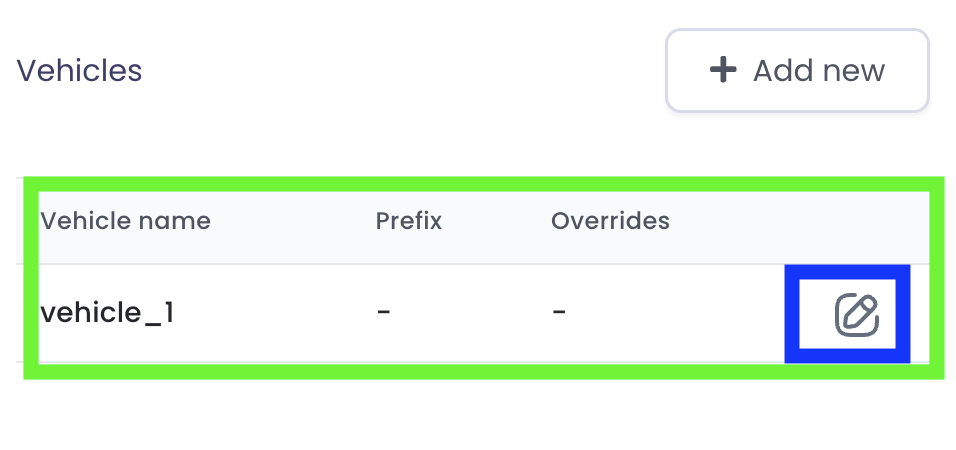
-
Edit the topic names and message types, then click Save.