Site settings parameters
Site settings can be reached in two ways:
-
Inside Manage Organisation->Teams->Team Name->Site Settings.
-
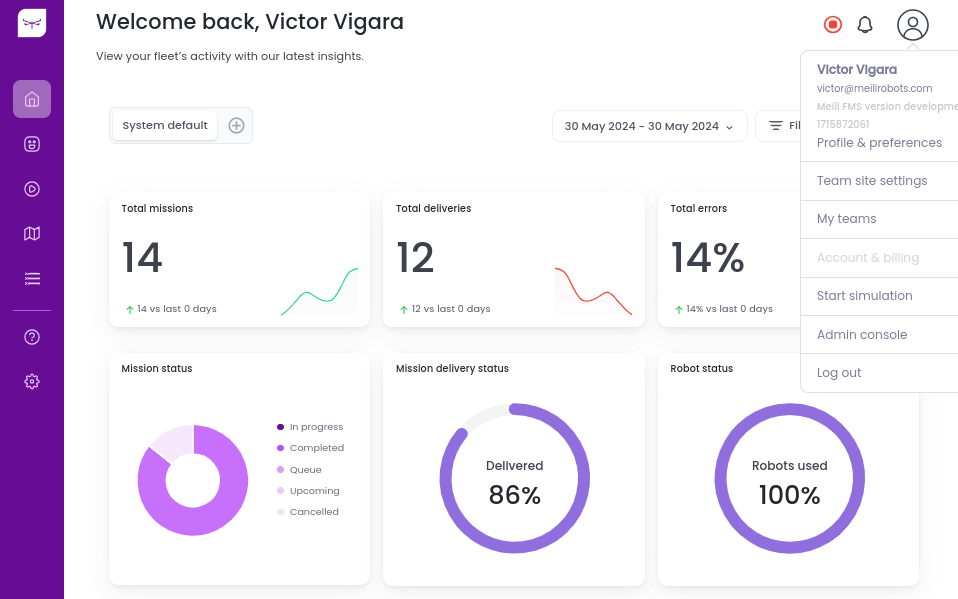
When you are inside your team, by clicking in the upper right corner to the “profile button” and then “Team site settings” as shown below.
Whether you access through “Manage Organisation” or “Profile Button”, you will reach the following page, where you can find the “Site settings” button in the upper right corner.
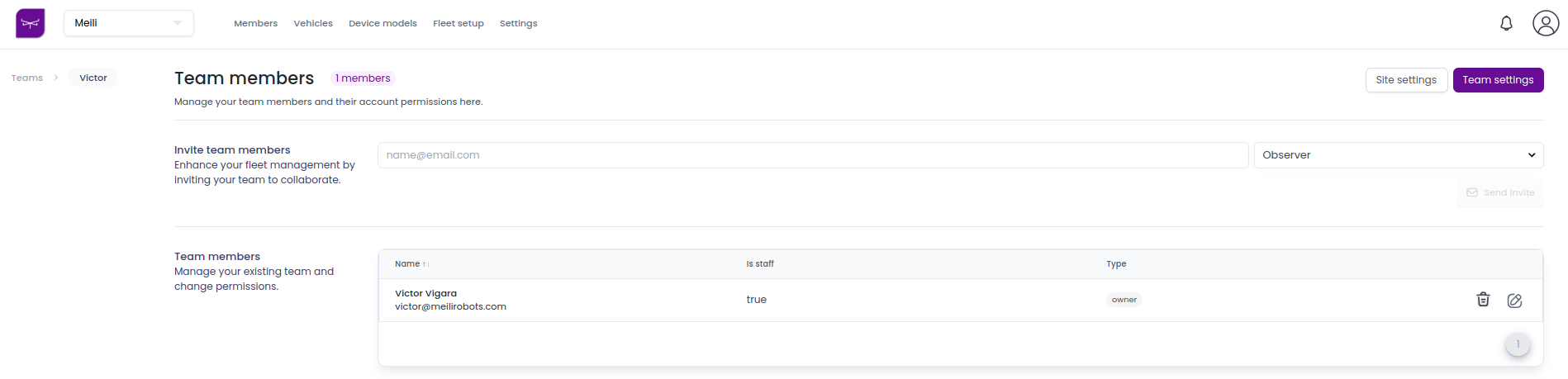
When clicking on Site Settings, you will see four separate pages, each containing different types of settings:
- Mission management – Parameters related to general mission execution
- Path planning – Parameters related to path generation and navigation
- Traffic control – Parameters related to traffic flow and coordination
- Battery – Default battery levels for the vehicles in the team
1. Mission management
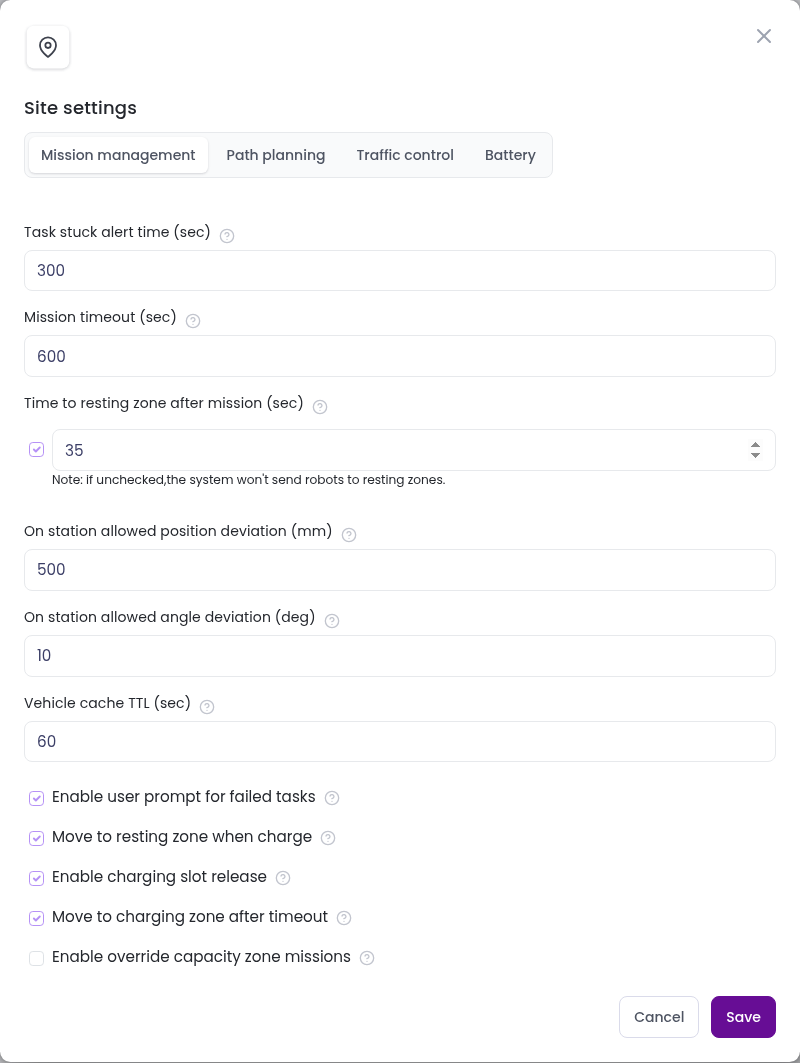
The following parameters can be configured:
| Setting | Description |
|---|---|
| Task stuck alert time (sec) | Time (in seconds) before the user is notified that a robot with an active mission has disconnected. The mission is also terminated after this time. |
| Mission timeout (sec) | Time (in seconds) a mission can stay inactive before it is terminated, or before the user is asked what to do with it. Inactivity is counted from when the most recent step was created or started, whichever is later. See Mission timeouts. |
| Time to resting zone after mission (sec) | How long a robot waits after finishing its mission before it is sent to a resting zone. Uncheck the box to never send robots to resting zones automatically. See Resting zones. |
| On station allowed position deviation (mm) | Maximum distance between the robot and a station for the robot to be considered on that station. |
| On station allowed angle deviation (deg) | Maximum angle between the robot’s orientation and a station for the robot to be considered on that station. |
| Vehicle cache TTL (sec) | How long (in seconds) the system keeps vehicle details such as location, speed and battery level. |
| Enable user prompt for failed tasks | If enabled, users are asked what to do with a failed mission (aborted, terminated, or vehicle went offline). If disabled, such missions are marked as failed automatically. |
| Move to resting zone when charge | If enabled, robots move to a resting zone once they are charged. If disabled, they stay in the charging zone. |
| Enable charging slot release | If enabled, a charging robot whose battery is above its release level moves to a resting station when another robot is waiting to charge. If disabled, robots stay docked until fully charged. |
| Move to charging zone after timeout | If enabled, idle robots move to a charging zone after the time set in Time to resting zone after mission. If disabled, they move to a resting zone instead. |
| Enable override capacity zone missions | If enabled, users get the option to let vehicles override capacity zone limits. |
2. Path planning
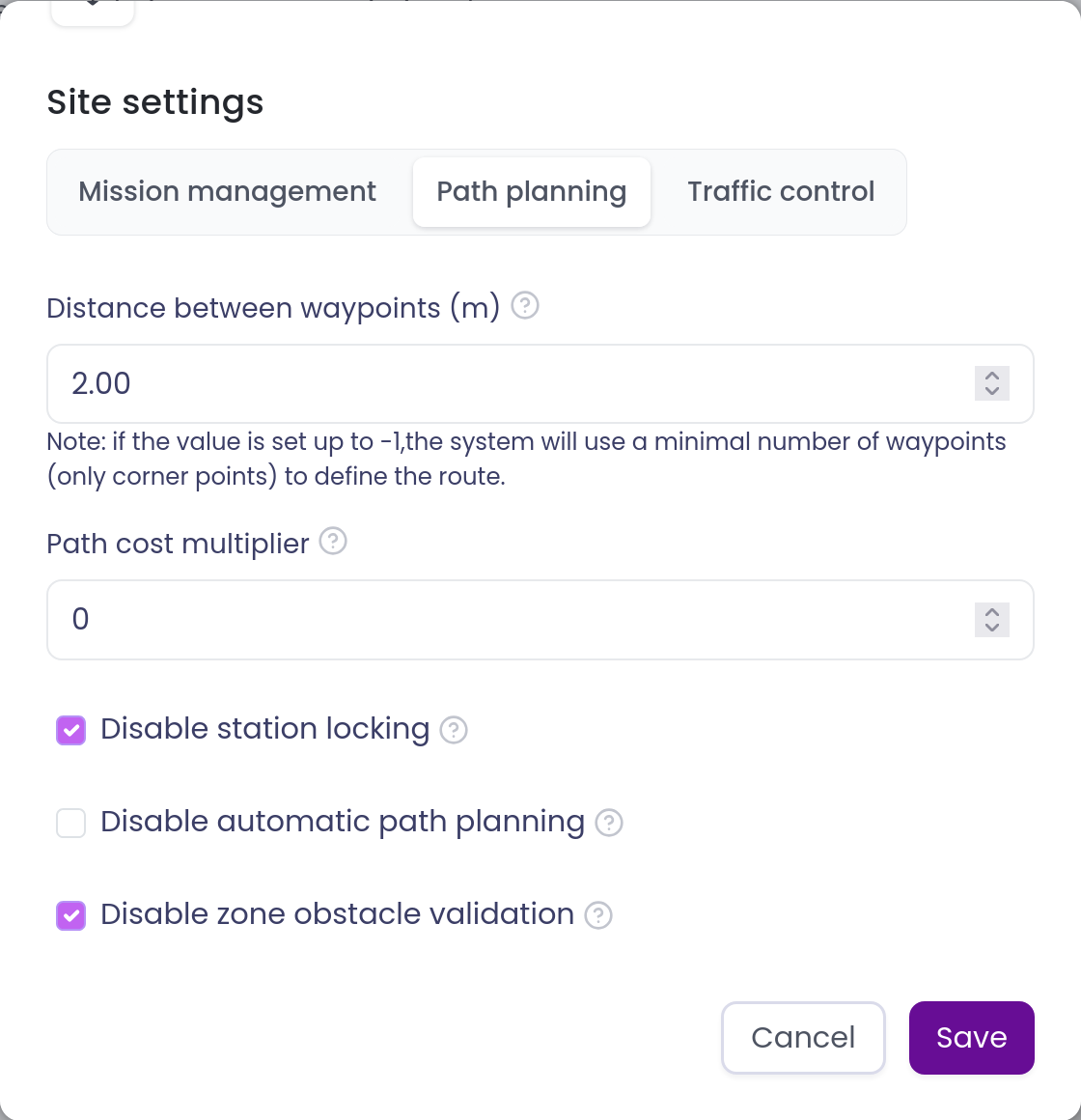
The following parameters can be configured:
| Setting | Description |
|---|---|
| Safety distance threshold (m) | The safety distance kept between obstacles and vehicles when planning paths. |
| Distance between waypoints (m) | The distance between waypoints along a path, in metres. Uncheck the box to use as few waypoints as possible (only the corner points). |
| Path curvature radius (m) | Rounds the corners of automatically planned paths, using this turning radius in metres. Stations are never moved, and the radius is reduced automatically where a corner would hit an obstacle. Uncheck the box to keep sharp corners. |
| Path cost multiplier | If set above 0, increases the cost of sending a mission along a path already in use by another mission. A value of 10 effectively prevents reuse of the same path. |
| Disable station locking | Allows more than one mission to be sent to the same station at the same time. |
| Disable automatic path planning | Disables Meili’s built-in path planner. This also disables automatic obstacle avoidance. |
| Disable zone obstacle validation | Allows zones of any type to be created on top of known obstacles on the map. |
Station locking ensures only one vehicle uses a station at a time. While Disable station locking is unchecked, you can tune its behaviour with the following three settings:
- Reservation window: A vehicle reserves its destination station once its estimated travel time there drops to this value or less. The estimated travel time is based on the average speed of the robot. Vehicles that are farther away can already drive toward the station without a reservation. If a vehicle comes within the window while another vehicle holds or occupies the station, it pauses and continues automatically once the station is free. Example: with 60 s, a robot 2 minutes away starts driving right away. About 1 minute out, it reserves the station. If the station is still busy, the robot stops where it is instead of queuing in front of the station.
- Larger value (e.g. 120 s): stations are claimed earlier, and robots wait farther from busy stations. Good for narrow aisles where a robot waiting near a station blocks traffic.
- Smaller value (e.g. 20 s): robots get closer before claiming, so stations turn over faster. Good for open areas with frequent, short station visits.
- Minimum early dispatch time: When the vehicle at a station is already leaving, the next vehicle can be sent right away instead of waiting for the station to be empty. This only happens if the next vehicle is at least this many seconds away, so the first one has time to clear the station. Example: with 20 s, robot A is leaving station 5. Robot B, 45 s away, is sent immediately. Robot C, 10 s away, waits until A has left.
- Larger value: safer hand-overs when vehicles leave stations slowly (e.g. after docking or lifting).
- Smaller value (down to 0): faster hand-overs when vehicles leave stations quickly.
- Dispatch to reserved stations: On: a vehicle farther away than the reservation window can start driving toward a station another vehicle has reserved. It reserves the station itself later, once the station is free. This keeps robots moving and cuts idle time. Off: the vehicle isn’t dispatched until the reservation is released. This is useful when robots driving toward a busy station would cause congestion. Example: Robot A has reserved station 5. Robot B also has a task for station 5 and is 3 minutes away. With the setting on, B starts driving now and should arrive around when A is done. With it off, B stays where it is until A releases station 5.
3. Traffic control
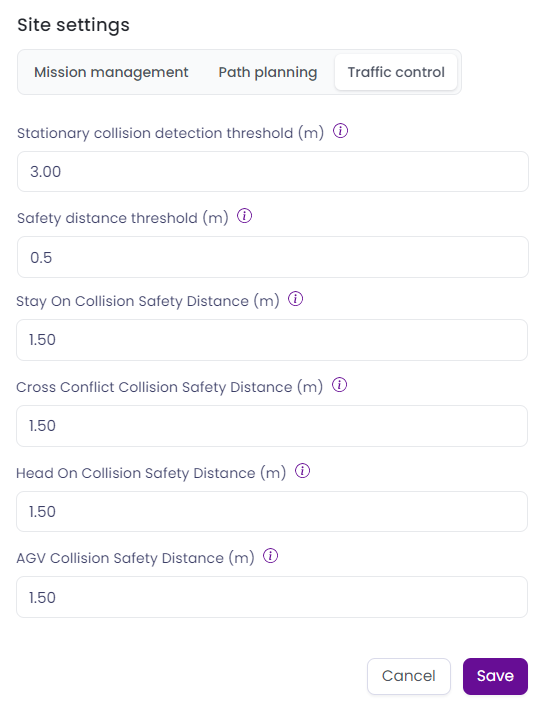
The following parameters can be configured:
| Setting | Description |
|---|---|
| Enable traffic control | Enables or disables traffic control. See Traffic control. |
| Safety distance threshold (m) | The distance used to detect possible collisions between robots. |
| Enable capacity zone traffic control | Enables or disables traffic control specifically within capacity zones. See Capacity zones. |
4. Battery
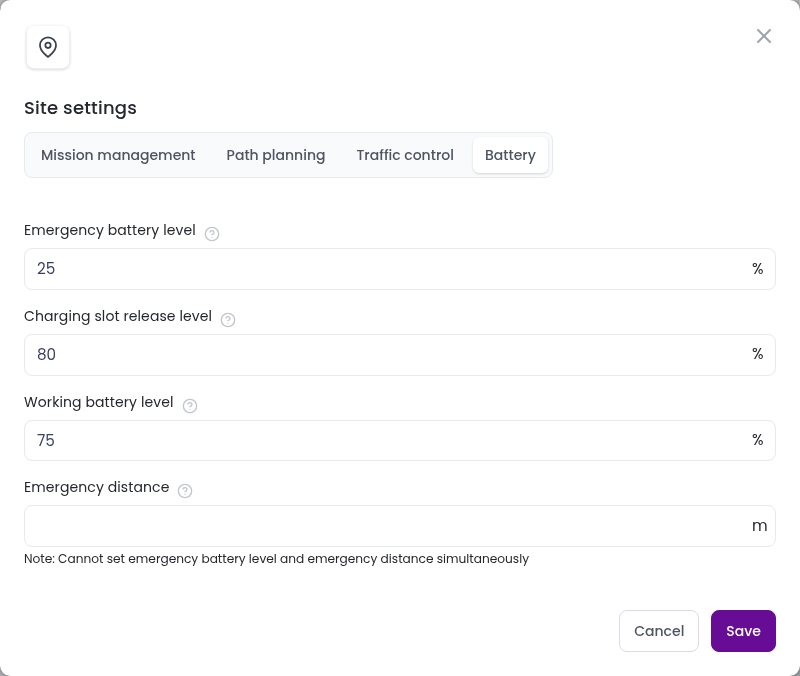
Here you set default battery levels for the whole team, so you don’t have to enter them for every vehicle. A vehicle only uses these values when Use team default settings is turned on in its battery settings.
| Setting | Description |
|---|---|
| Emergency battery level (%) | The battery level at which a vehicle is sent to charge. |
| Charging slot release level (%) | The battery level above which a charging vehicle can give its charger to a vehicle that needs it more. Only used when Enable charging slot release is turned on in the Mission management tab. |
| Working battery level (%) | The battery level a charging vehicle must reach before it can take missions again. |
| Emergency distance (m) | An alternative to the emergency battery level: the vehicle is sent to charge when the distance it can still travel drops to this value. |
Set either an Emergency battery level or an Emergency distance, not both.
See Charging for how these levels are used.