Dashboard
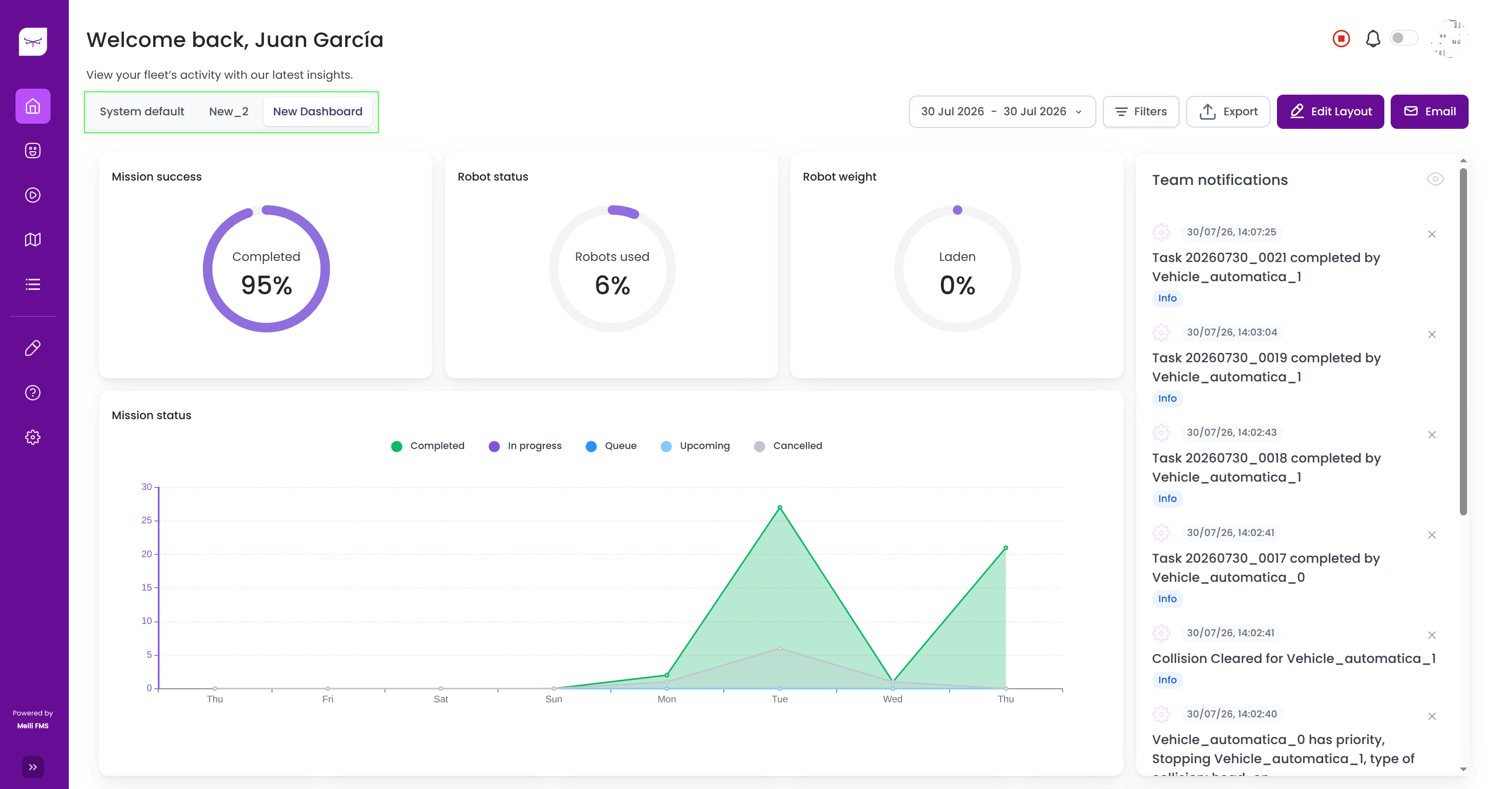
The Dashboard gives you an overview of your entire fleet. It shows key metrics about your robots and operations, and you can build custom dashboards with the charts that best fit your needs.
System Default Dashboard
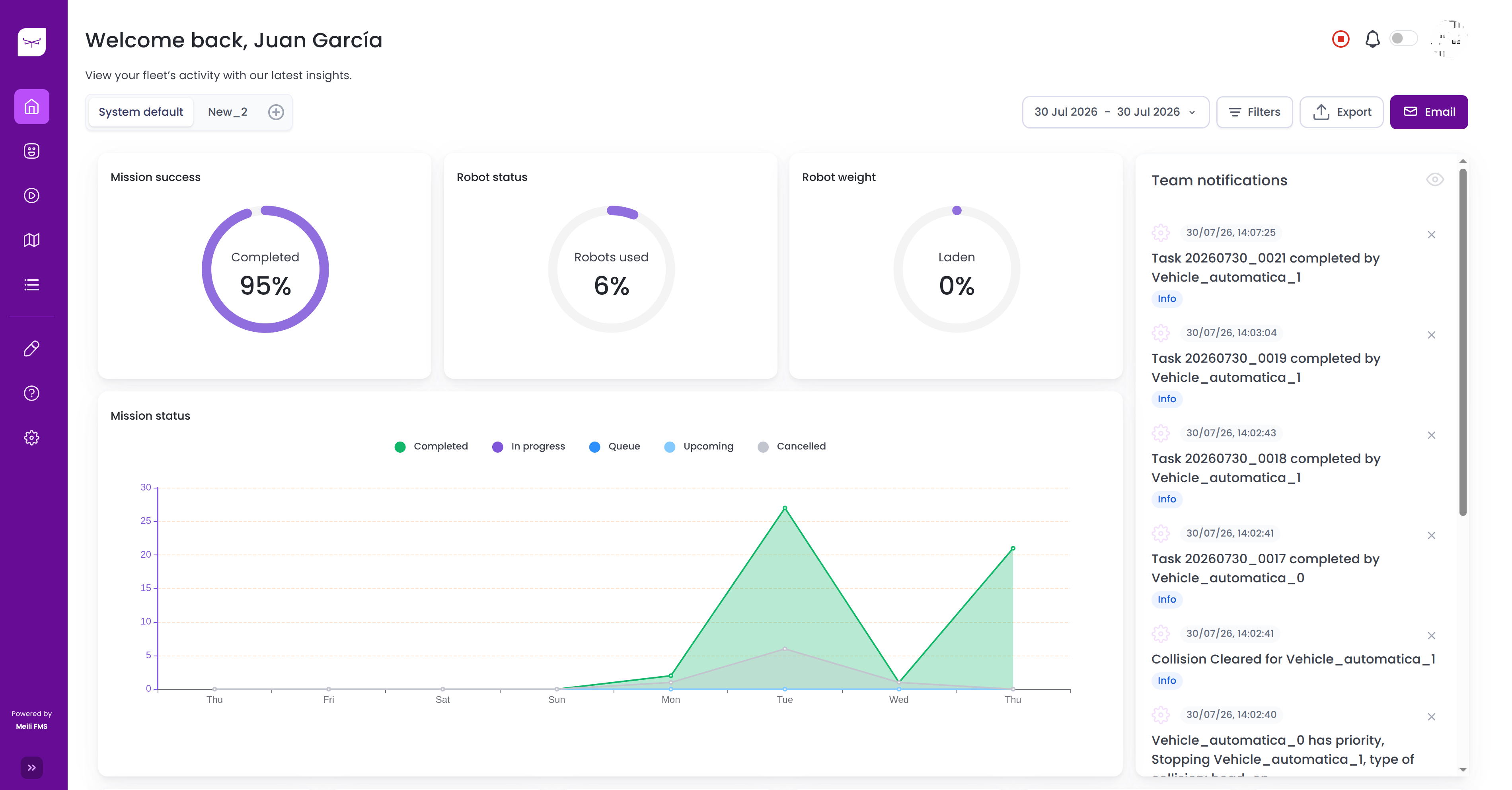
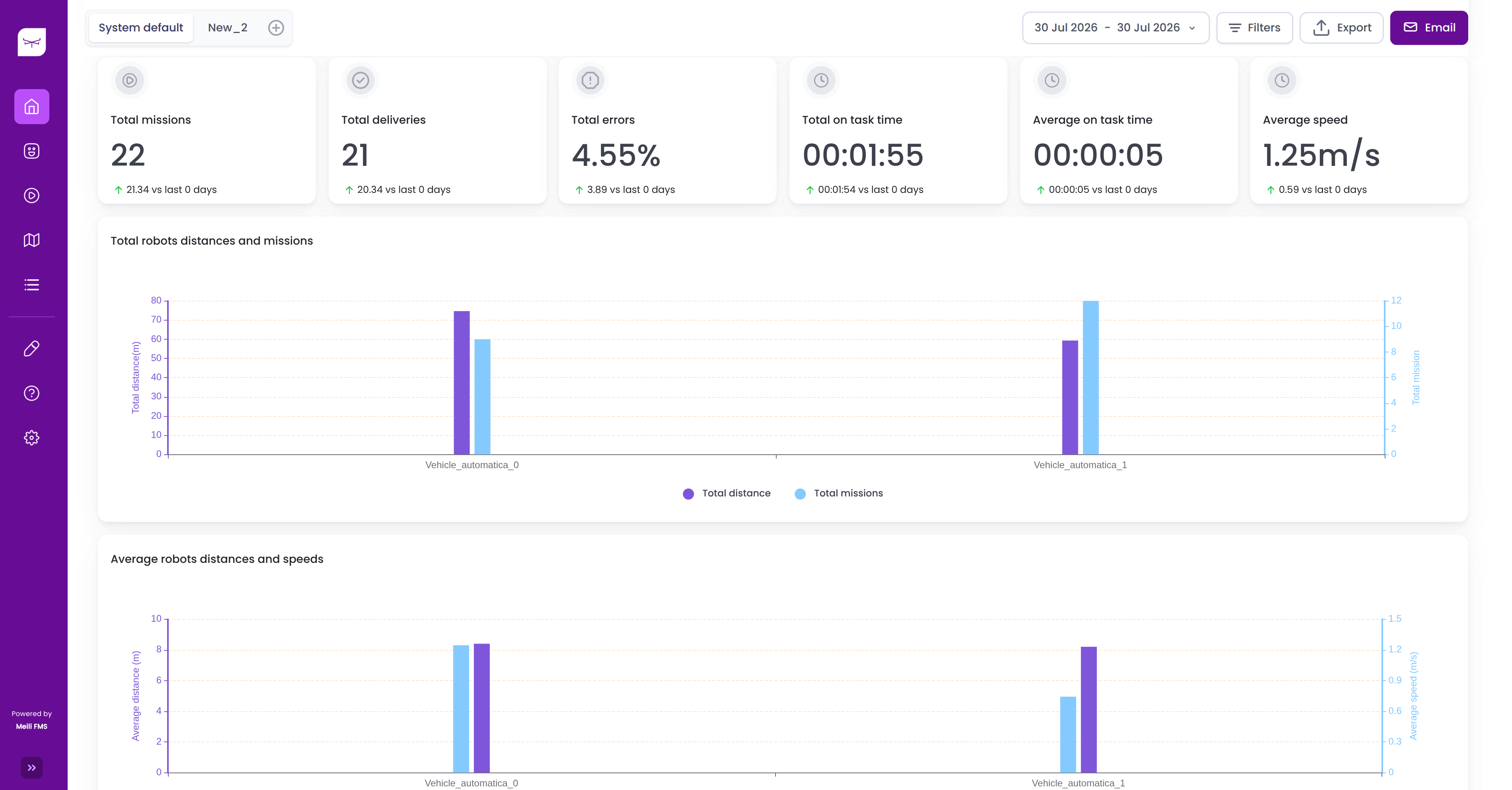
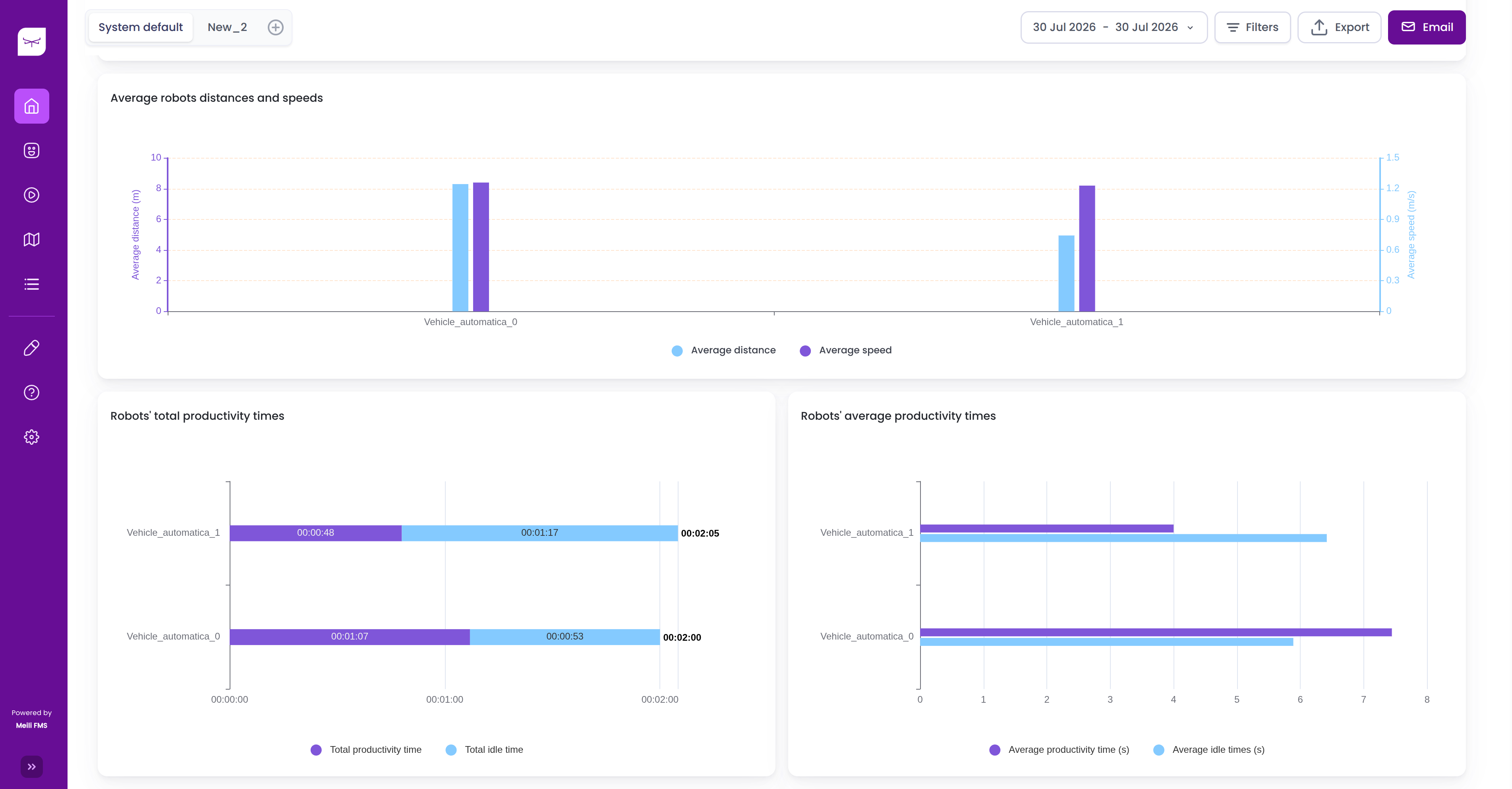
When you first open the Dashboard, the System Default dashboard is displayed. It shows the following metrics for the selected timeframe:
- Mission success
- Robot status
- Robot weight
- Mission status
- Total missions
- Total deliveries
- Total errors
- Total on-task time
- Average on-task time
- Average speed
- Total robot distance and missions
- Average robot distance and speed
- Robots’ total productivity time
- Robots’ average productivity time
To change which charts are displayed, you first need to create a custom dashboard.
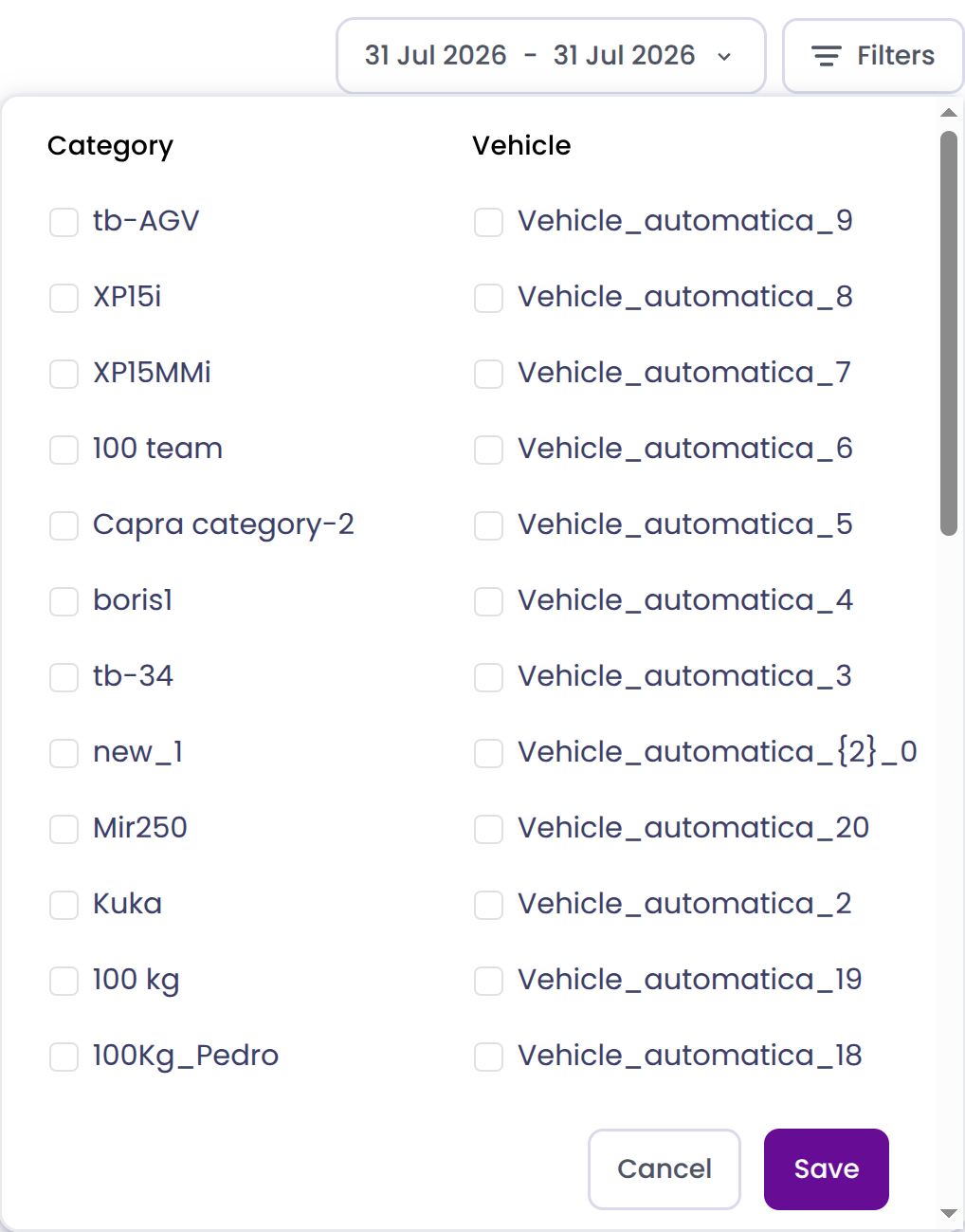
Filtering Data
You can filter the dashboard data by:
- Timeframe
- Vehicle
- Vehicle category
Exporting and Sharing Data
Exporting to CSV
To download the displayed data for the selected timeframe as a CSV file, click the export button in the top-right corner of the dashboard.
Sending Email Reports
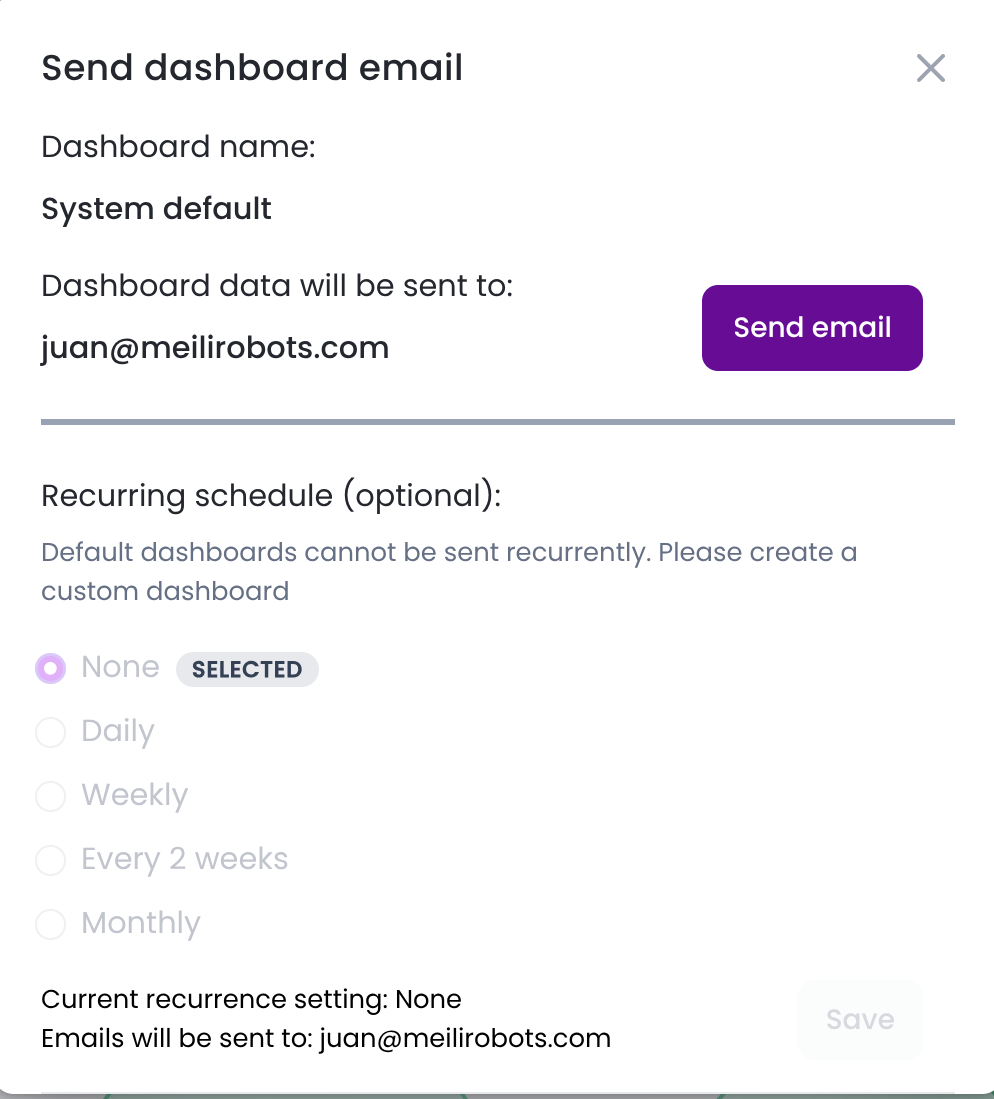
Click the Email button to open the email dialog. From there you can:
- Send the current dashboard immediately, including any applied filters.
- Set up a recurring schedule to receive email reports at the selected frequency.
Custom Dashboards
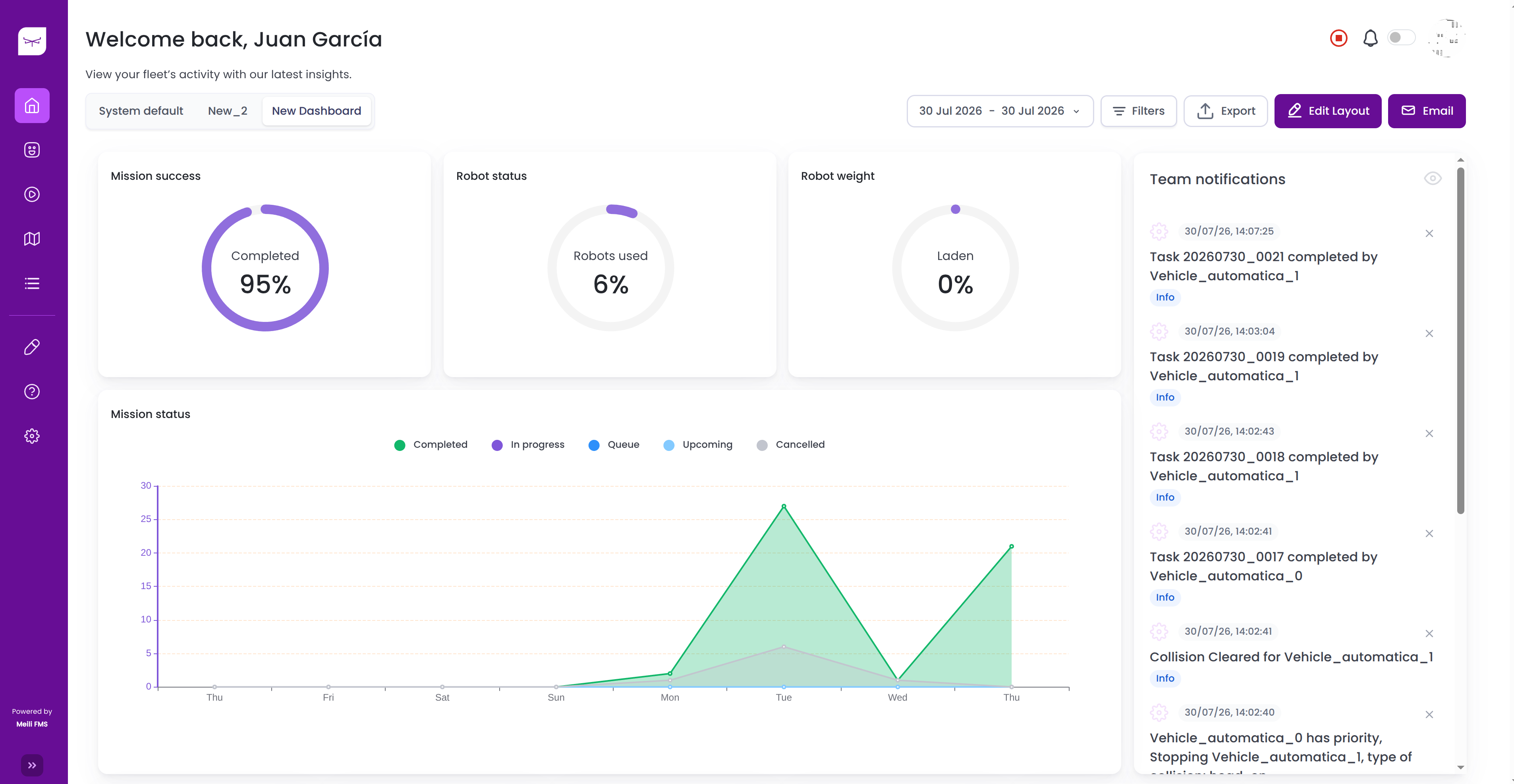
Custom dashboards let you choose which charts are displayed and how they are arranged. Your custom dashboards appear as tabs above the KPI cards, so you can switch between them and the System Default dashboard.
Creating a Custom Dashboard
-
Click the ⊕ icon in the top-left corner of the System Default dashboard.
-
Enter a name for the new dashboard.
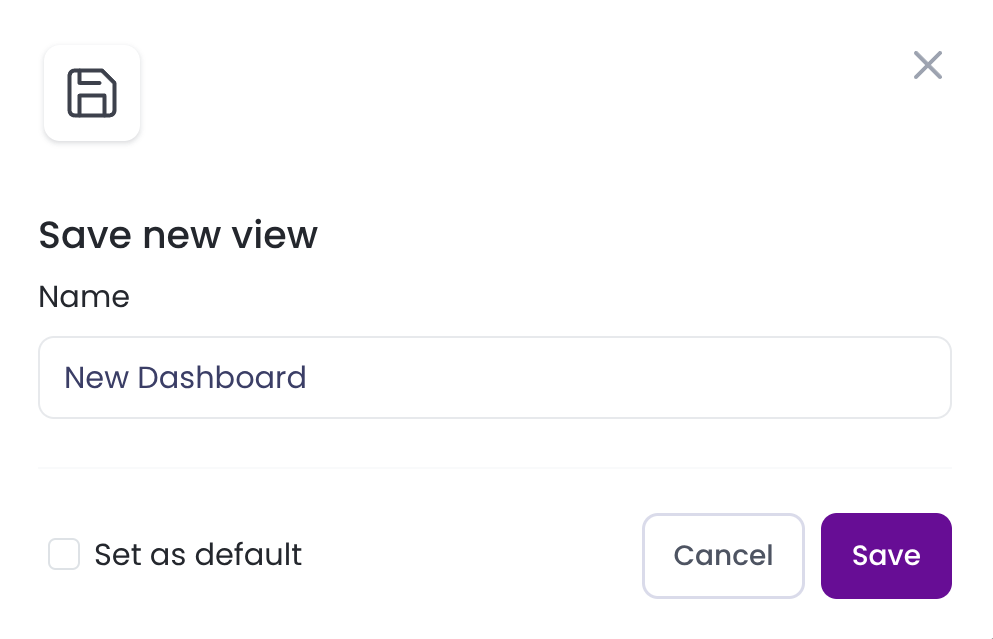
You can set the new dashboard as the default so that it is displayed instead of the System Default dashboard.
-
Click Edit layout to start customizing the dashboard. See Editing the Layout.
Editing the Layout
While in edit mode, you can:
-
Remove a chart: click the bin icon on the chart.
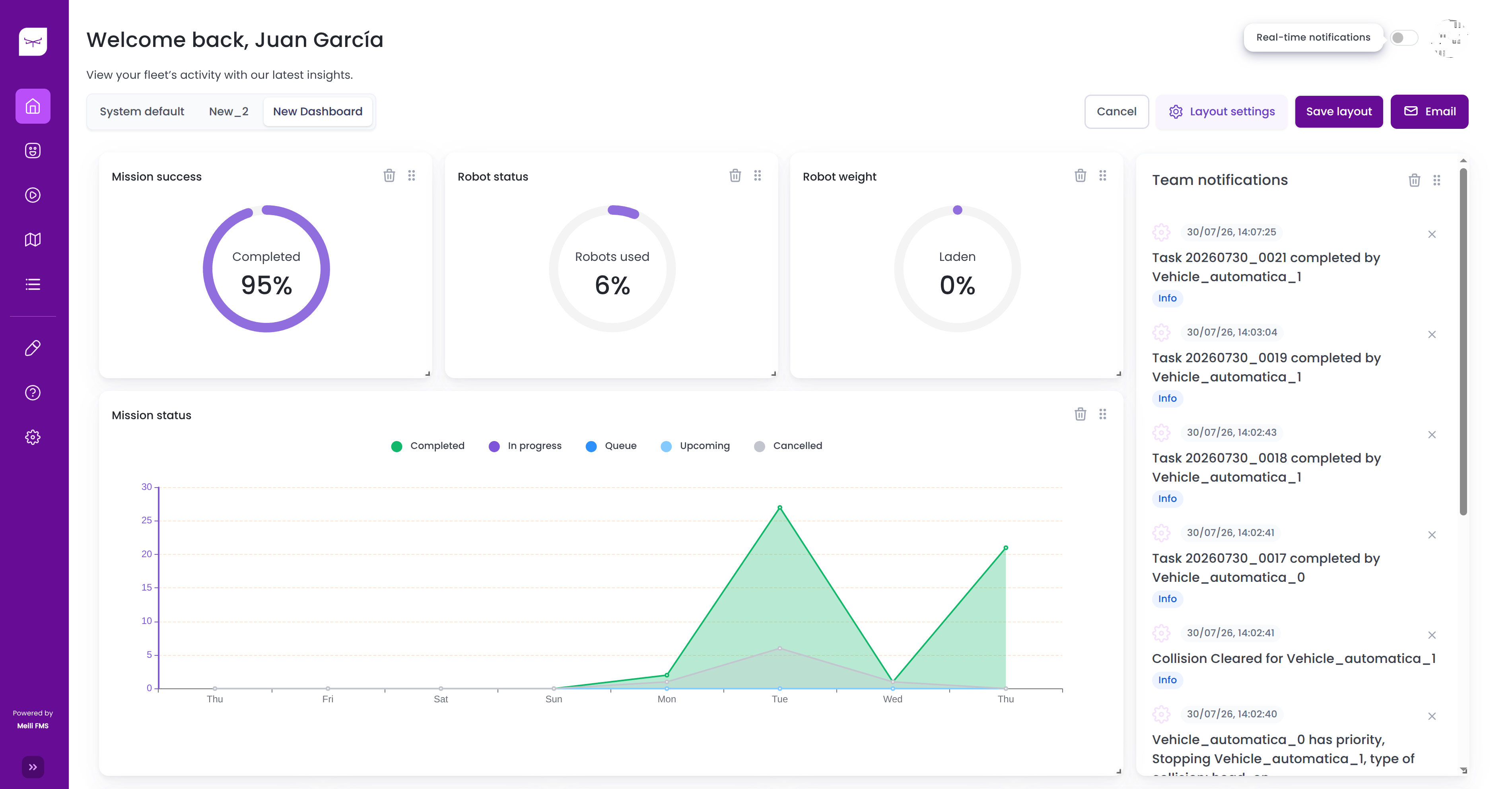
-
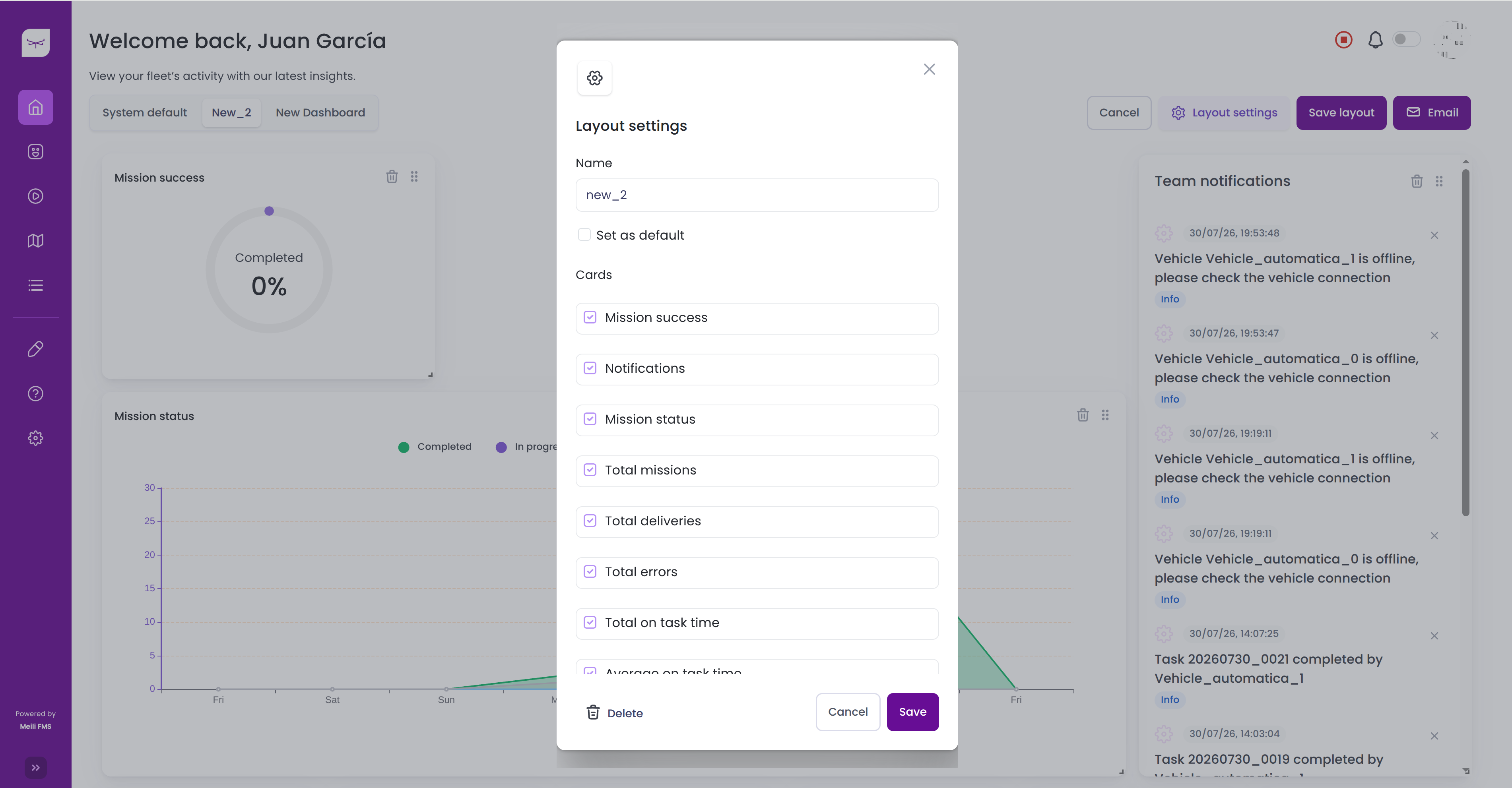
Add or remove several charts at once: click Layout settings to display a list of all available charts, select the ones you want to include, and click Save.
When you are done, click Save layout to apply your changes, or Cancel to discard them and restore the previous layout.