Mission schedules
The Mission schedules tab lists the missions set to run later: once on a given date, or repeatedly on certain days or at regular intervals.
To open it, go to Actions inside your team and select the Mission schedules tab.

Each row shows:
- Name: the name of the scheduled mission.
- Execute: the date and time it runs next.
- Details: the mission’s actions.
- Enabled: whether the schedule is active.
- Offline: whether the robot runs the schedule on its own, even without a connection to Meili.
Schedule a mission
You schedule missions from the Missions page: create a new mission or pick a mission preset, turn on Schedule for later and choose when it runs. See Create a new mission.
Schedules use the team’s time zone.
Edit a schedule
Click the edit icon on the schedule’s row. The Edit scheduled mission dialog shows the timing fields for the type of schedule:
- A mission that runs once has an Execution date and an Execution time.
- A mission that runs on certain days has Execution day(s) and an Execution time.
- A mission that runs at regular intervals has Execute every, with the times it runs from and to.
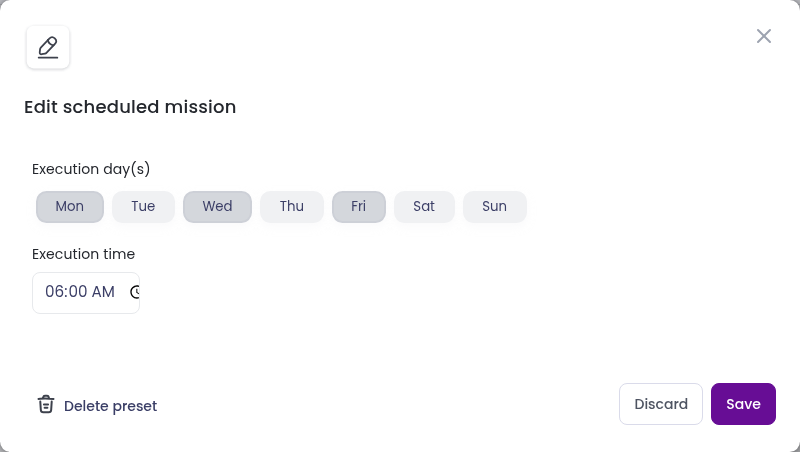
Change what you need and click Save.
Delete a schedule
Click the bin icon on the schedule’s row and confirm, or click Delete preset in the edit dialog. Only the schedule is deleted: the mission preset it uses is kept.
To delete several schedules at once, select them with the checkboxes and click Delete selected.