Mission allocation
When you create a mission without choosing a robot, Meili FMS picks one for you. This page explains how it decides which mission goes first and which robot gets it.
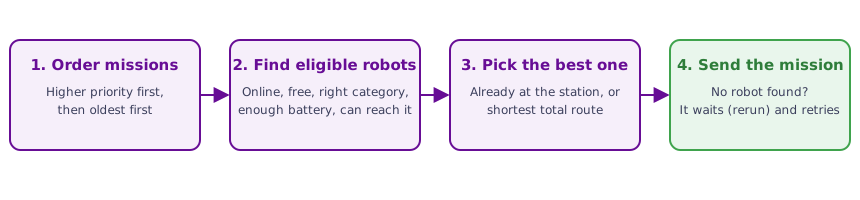
Which mission goes first
When several missions are waiting, Meili handles them in this order:
- Missions with a priority, from the highest priority to the lowest. You set the priority with the Priority slider when you create a mission or a mission preset.
- Missions without a priority, from the oldest to the newest.
Any mission with a priority above 0 goes before every mission without one, however long those have been waiting.
Which robots can take a mission
A robot is only considered for a mission if:
- it is online, active and has a known position, and is not in manual control;
- it is not busy with another mission;
- it belongs to the vehicle category the mission requires, if the mission requires one;
- it has enough battery. Robots that need to charge, or that are charging and haven’t reached their working level, are skipped. So are robots that couldn’t finish the mission and still keep their emergency reserve. See Charging;
- it has a map of the destination floor, if the mission goes to another floor. See Multiple map levels;
- it can reach the stations of the mission along the paths. A robot that isn’t connected to the path network can’t take the mission unless free roaming is enabled.
A robot that is running a looped mission keeps running it and doesn’t take other missions.
If you choose a specific robot when you create the mission, only that robot is considered. If it isn’t available, the mission waits for it.
Which robot is chosen
Among the robots that can take the mission:
- If one of them is already at the first station of the mission, it gets the mission.
- Otherwise, Meili picks the robot with the shortest total route: from where it is now, through every station of the mission.
When no robot is available
If no robot can take the mission, it gets the status rerun and waits. Meili tries again automatically when the situation changes, for example when a robot finishes a mission, finishes charging or comes online.
A mission can also wait after a robot has been chosen, for example when its destination station is reserved by another robot, or when the zone it goes to has reached its vehicle limit. See Capacity zones and the station locking settings in Site settings.
To see why a mission is waiting, open it in Actions > Missions and check its Log. It lists each robot that was skipped and why, for example “Vehicle_2 is busy with another task”. See Mission details.