Custom page
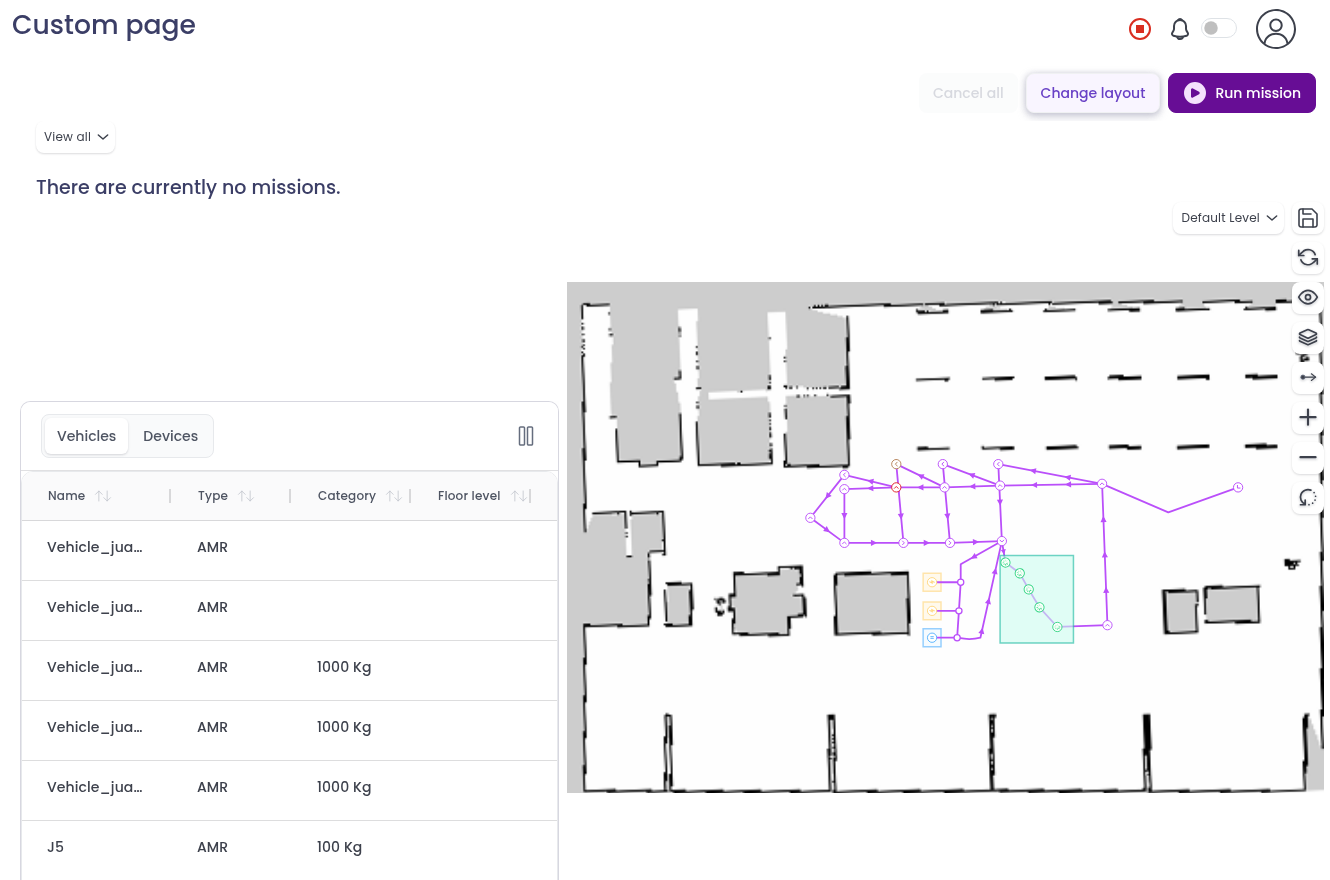
The Custom page brings your team’s missions, map and vehicles together on one screen. You choose how they are arranged. It works well as an operator view, for example on a screen next to a workstation, where people need to follow missions and start new ones without moving between pages.
To open it, click the pencil icon in the left sidebar.
The Custom page is still evolving, and its layout and options may change in future releases. If something doesn’t display as expected, reload the page. If the problem persists, contact Meili support.
What the page shows
Depending on the layout, the page shows two or three of these areas:
- Missions: your team’s missions. Use the dropdown at the top to filter them: View all, In progress, Queue, Upcoming, Completed or Cancelled.
- Map: the live map of your site with your robots on it. If your site has several floors, choose the floor from the level dropdown. Use the buttons next to the map to zoom and rotate, choose which names and elements are shown (eye icon), and choose the map layers (layers icon).
- Vehicles: your vehicles and devices, with their status, battery and current mission. It shows the same information as the Vehicles & devices page.
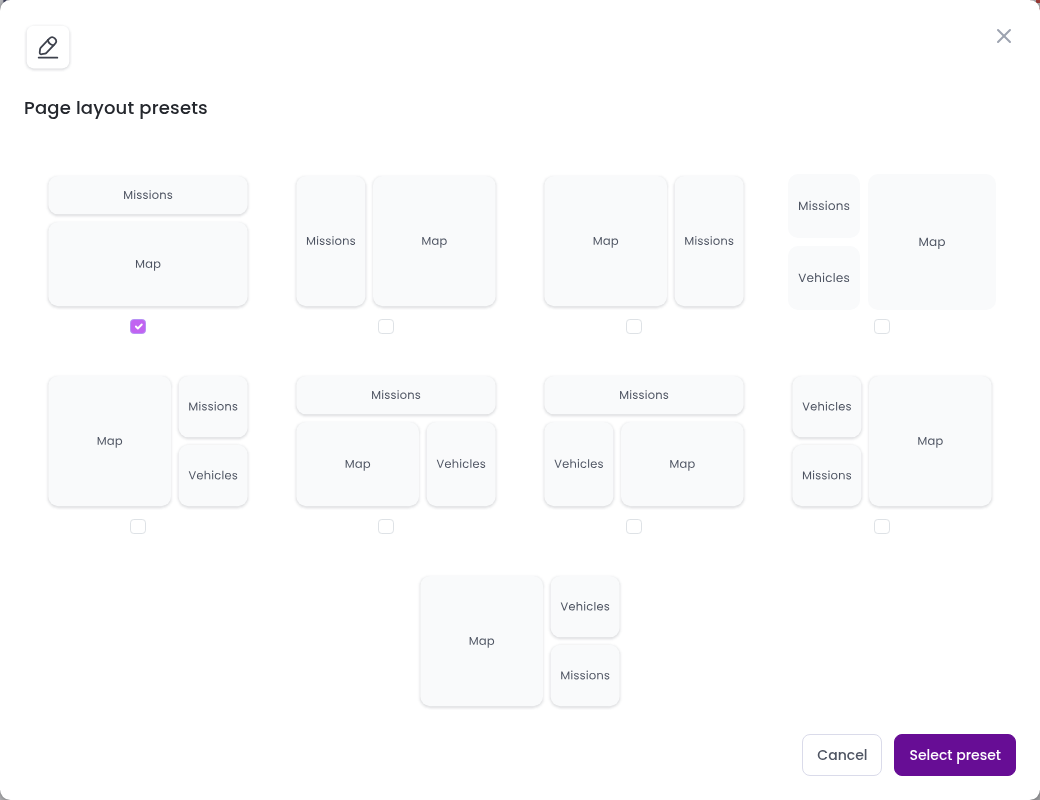
Change the layout
- Click
Change layout. - Pick one of the layout presets.
- Click
Select preset.
Save the layout and map view
A new layout only lasts until you leave or reload the page. To keep it, click the save icon at the top of the map buttons. This saves:
- the layout,
- the map position, zoom and rotation, and
- the elements and layers you have chosen to show.
The saved view is shared with your team, so everyone who opens the Custom page sees the same arrangement.
Run a mission
Click Run mission to start a mission. You can run one of your mission presets or create a new mission, the same way as on the Missions page. The new mission appears in the Missions area.
Run mission is not available while the team’s emergency stop is active.
Cancel all missions
Click Cancel all to cancel every mission of the team at once, then confirm. This can’t be undone. The button is only available when there are missions to cancel.