Charging zones
Charging zones are a critical component of an FMS. These zones are linked to physical charging stations installed on-site, ensuring robots can recharge efficiently and continue their tasks without interruptions.
Mobile robots in the fleet may employ different charging methods, such as using a dedicated plug, induction plates, or other technologies. To accommodate these variations, Meili FMS allows for the configuration of docking routines tailored to specific categories of robots. This flexibility ensures seamless integration and effective energy management across diverse robot types, maximizing uptime and operational efficiency.
Create a charging zone
- In the Map editor, click Add zones on map in the side toolbar and choose the Rectangle tool.
- Select Charging zone as the Type and fill the settings:
- Vehicle category: only robots of the selected categories can use the zone. Choose at least one.
- Zone safety parameter (meters): the margin, in metres, around the charger that is shown as the charging zone.
- Priority: makes this charging zone preferred over charging zones with a lower priority.
- Vehicle limit: the number of robots that can be assigned to the charging zone at the same time.
- Entry preset (optional): a mission preset the robot runs when it enters the zone, for example a docking routine. If the zone has a docking station, select it as the station in the preset.
- Exit preset (optional): a mission preset the robot runs when it leaves the zone, for example an undocking routine. Select the charging station as the station in the preset.
- Docking and undocking stations: when checked, Meili also creates a docking station outside the zone, where the robot starts its docking routine. You can move it around the charging zone. The undocking station is placed on the charging point. This option is only available when you create the zone.
- Click
Create zoneand draw the zone on the map, on the charger.
To change the settings later, click the zone on the map.
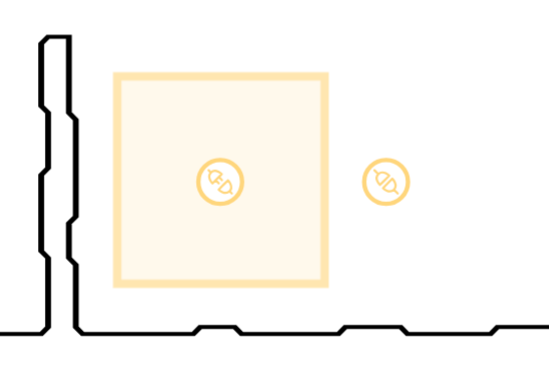
Example of charging zone with docking/undocking station
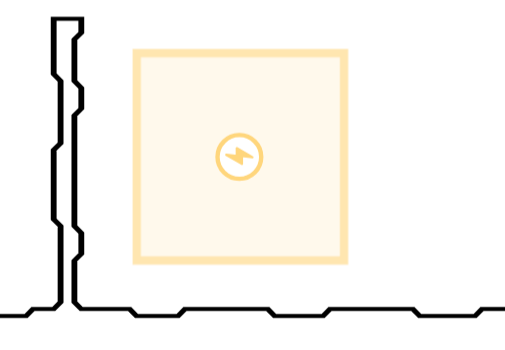
Example of standard charging zone (no dock station)
Charging zone functionality
Charging zones are a powerful tool that can be combined with Meili FMS battery management. There are two ways to enable automatic vehicle recharging:
-
Using vehicle battery management: to enable battery management navigate to Vehicles page, select the desired vehicle by clicking on the edit icon on the right side. Select Battery tab and tick Enable battery management. Additional parameters can be set here. When the vehicle reaches the Emergency battery level, the robot will automatically go to charge.
-
Using mission management: when a robot is idle, it can be sent automatically to charge. To enable it, navigate to Site settings, in the Mission management tab select Move to charging zone after timeout. The time that the robot can stay idle before going to charge can be defined in “Time to resting zone after mission” parameter.
When attaching a preset to a charging zone, the vehicle will reach the docking station and perform the preset on entry. If no docking station is defined, it will perform the preset on the charging station. When moving out of the station, the robot will perform the mission preset on the charging station before moving out of the zone.
In the following example, a “Dock to charge action” has been set as a entry mission preset to be performed on charging docking station. When a vehicle is sent to charge, the system will automatically generate a move to point to get to charging docking station and let the robot perform the docking routine there. It is expected that the robot will move to the charging station autonomously.
When the vehicle is charged or it is assigned to a mission, it will first perform the “Undock from charge action” that was set as an exit preset and then move to the desired destination.
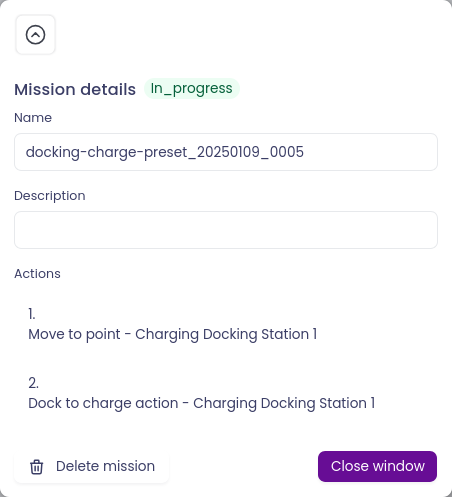
Docking routine example
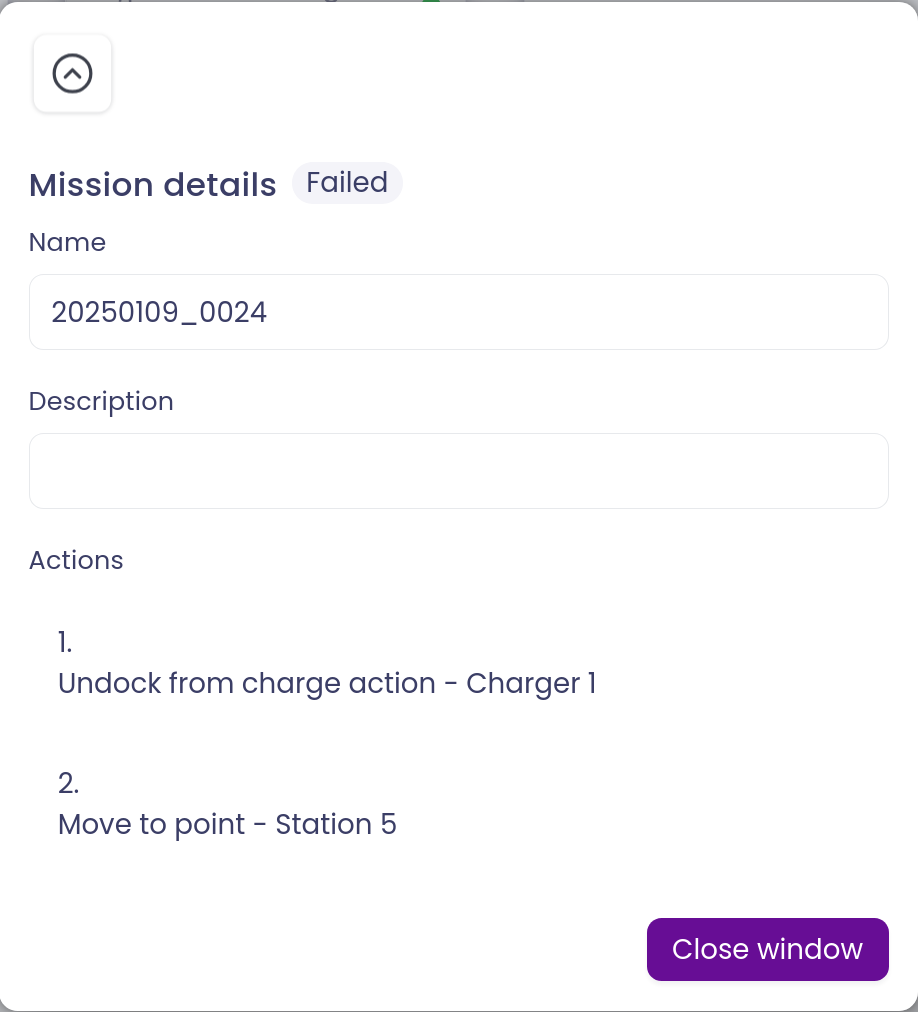
Undocking routine example
For the general steps to add and edit zones, see Zones.