Adding a New Floor #
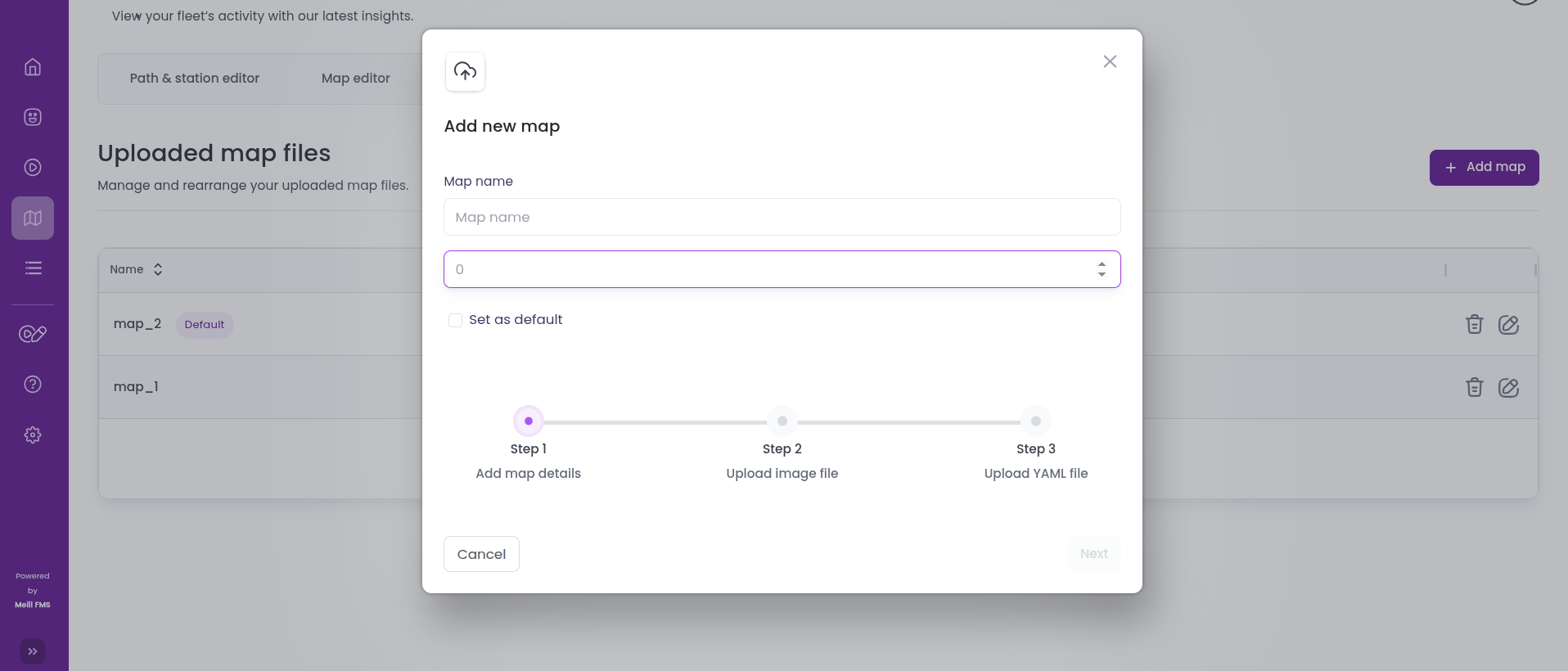
To enable multifloor support, maps are uploaded in the same way as described in the Map Upload guide.
The key difference is that during upload, you must specify the Floor Number and optionally select “Set as default”.
Setting a map as the default means it will be displayed automatically when the page is first opened.
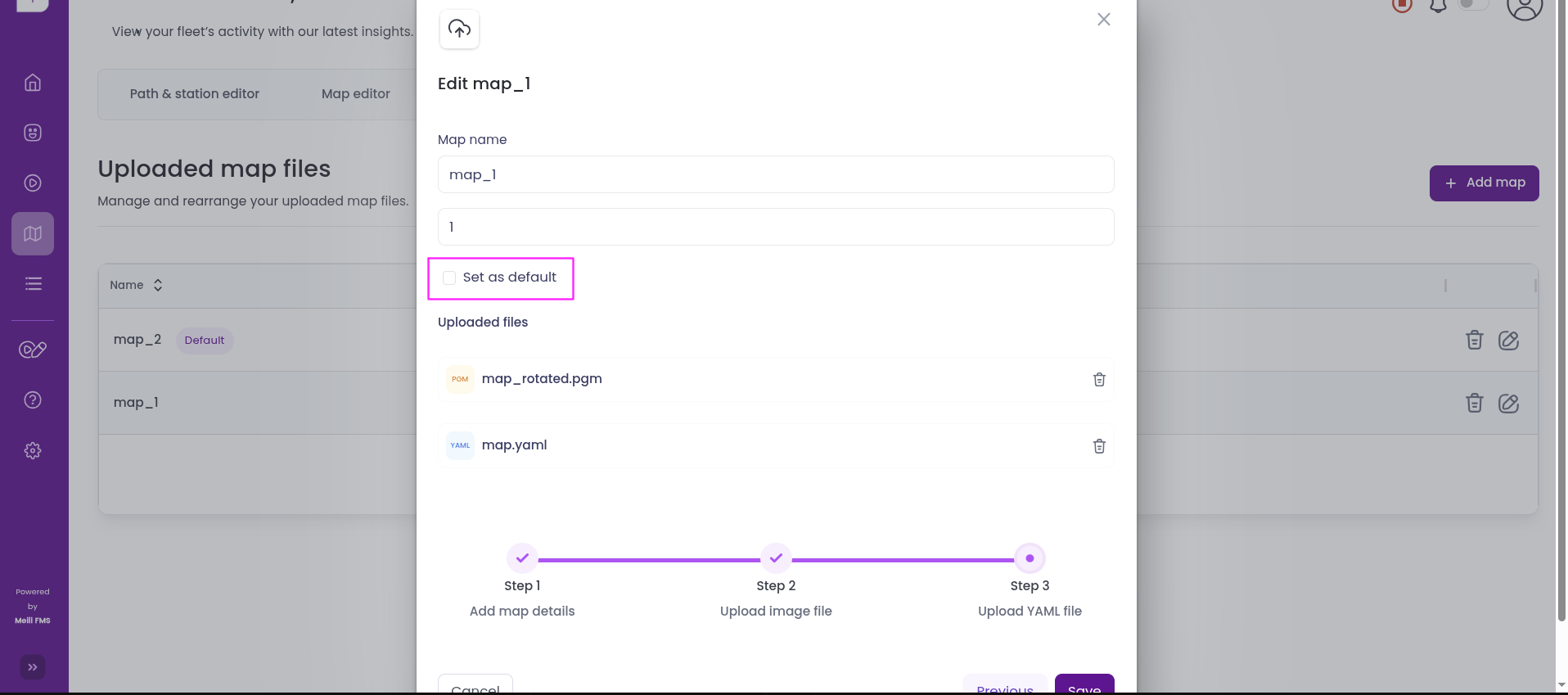
You can update the default map at any time by navigating to:
Maps → Map Files → Edit (desired map, e.g. map 0) → Check “Set as default”
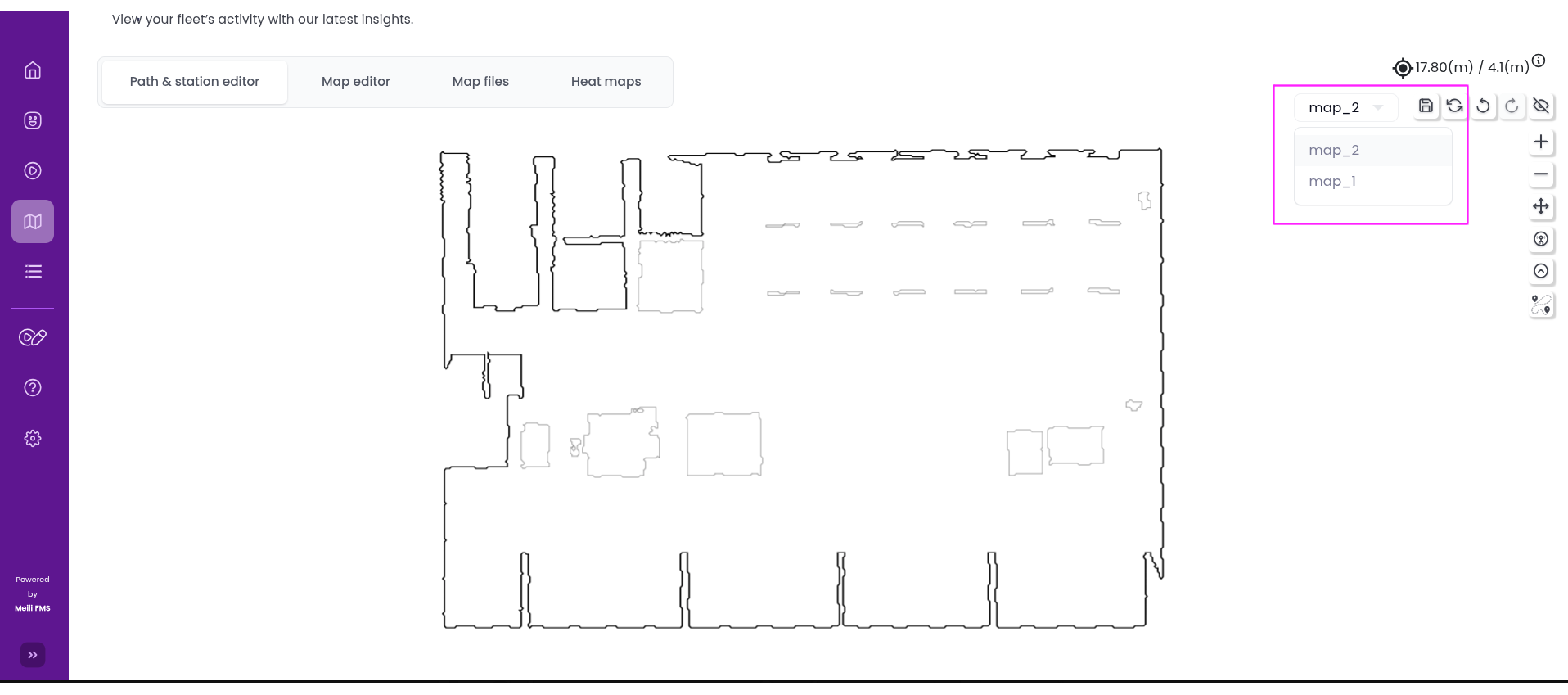
Once a map is successfully added, you can switch between different floors using the dropdown menu located at the top right corner of the map view.
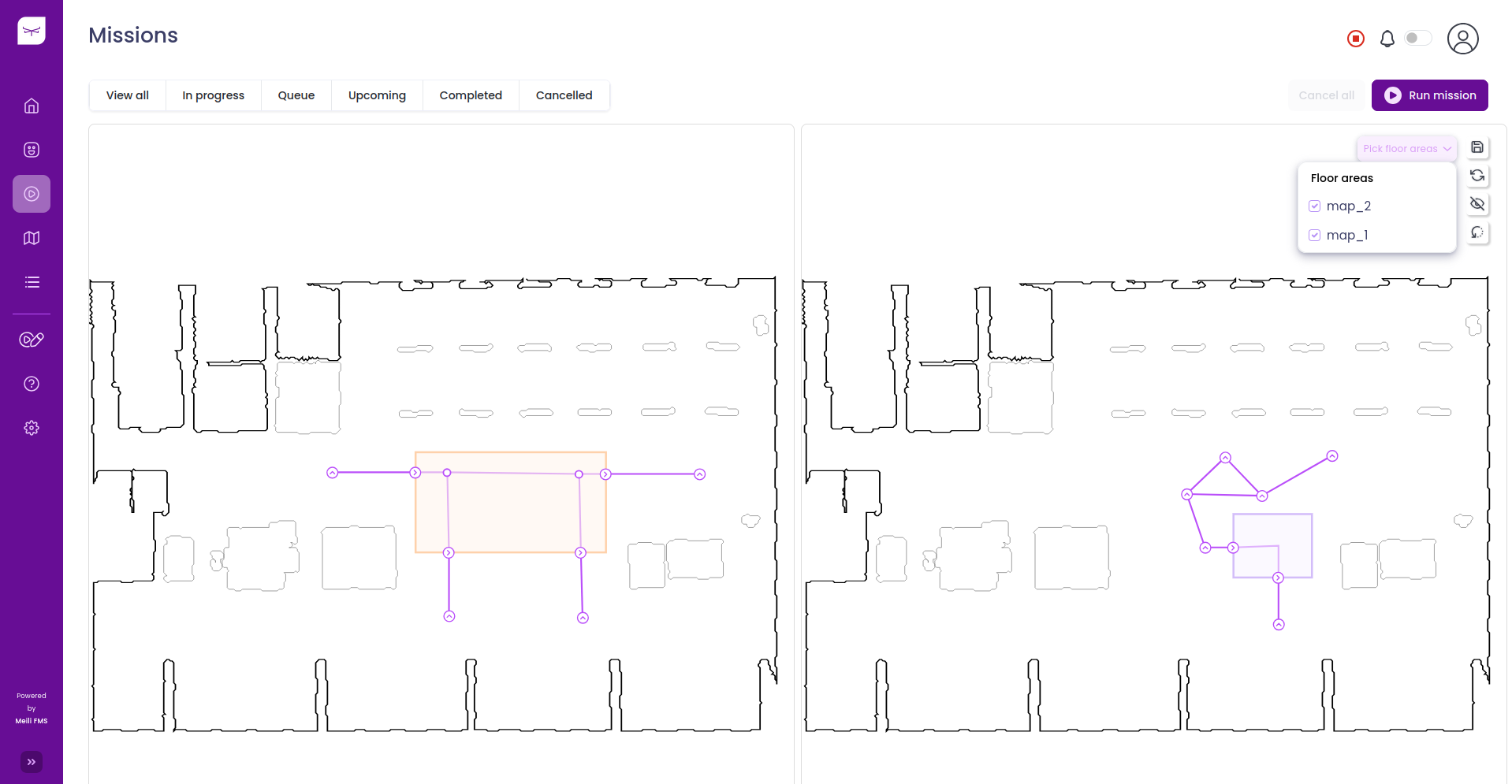
In the Pick floor areas dropdown, you can select to view multiple floors simultaneously by checking the boxes next to each floor. This allows you to visualize and manage multiple floors at the same time.