Manage Organisation - Communications channels #
Create a communication channel #
To configure the On-robot Meili Agent you must set up your vehicles fleet in the FMS.
Step 1:
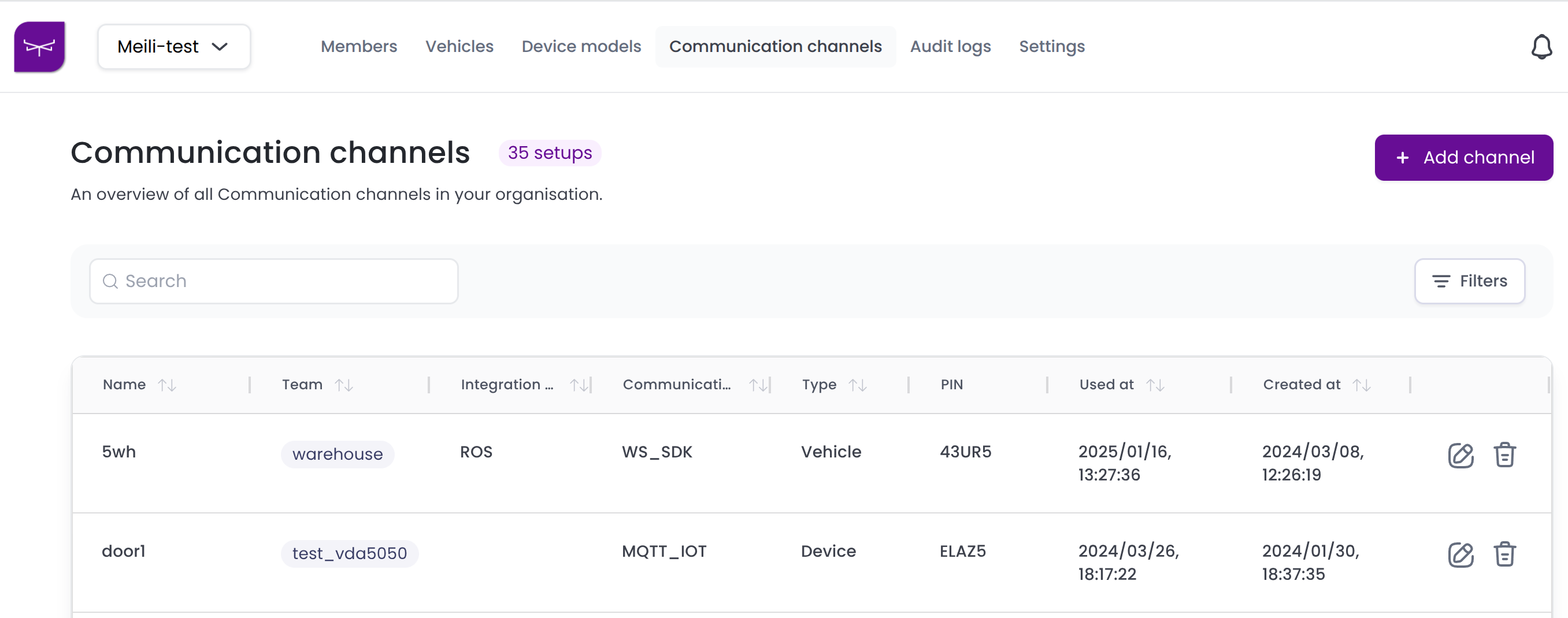
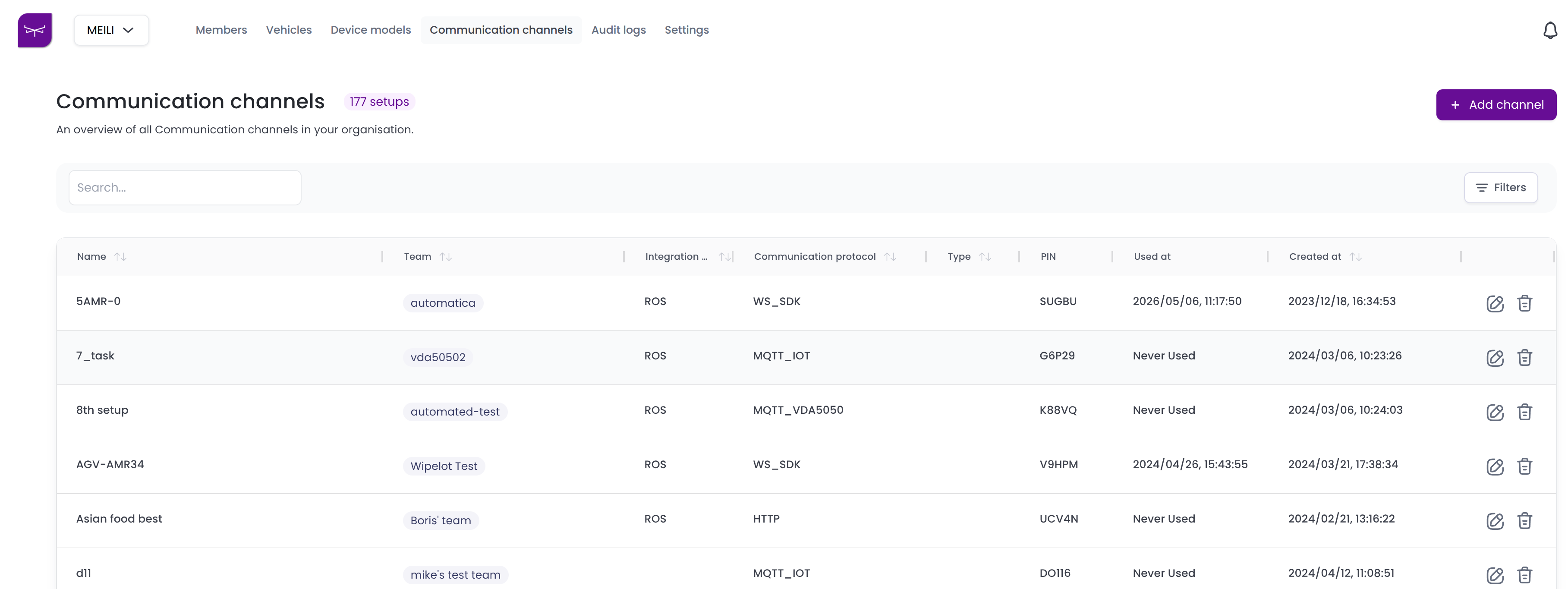
- Navigate to the Communication channels tab.
- Click the + Add channel button to create a new communication channel.
Step 2:
-
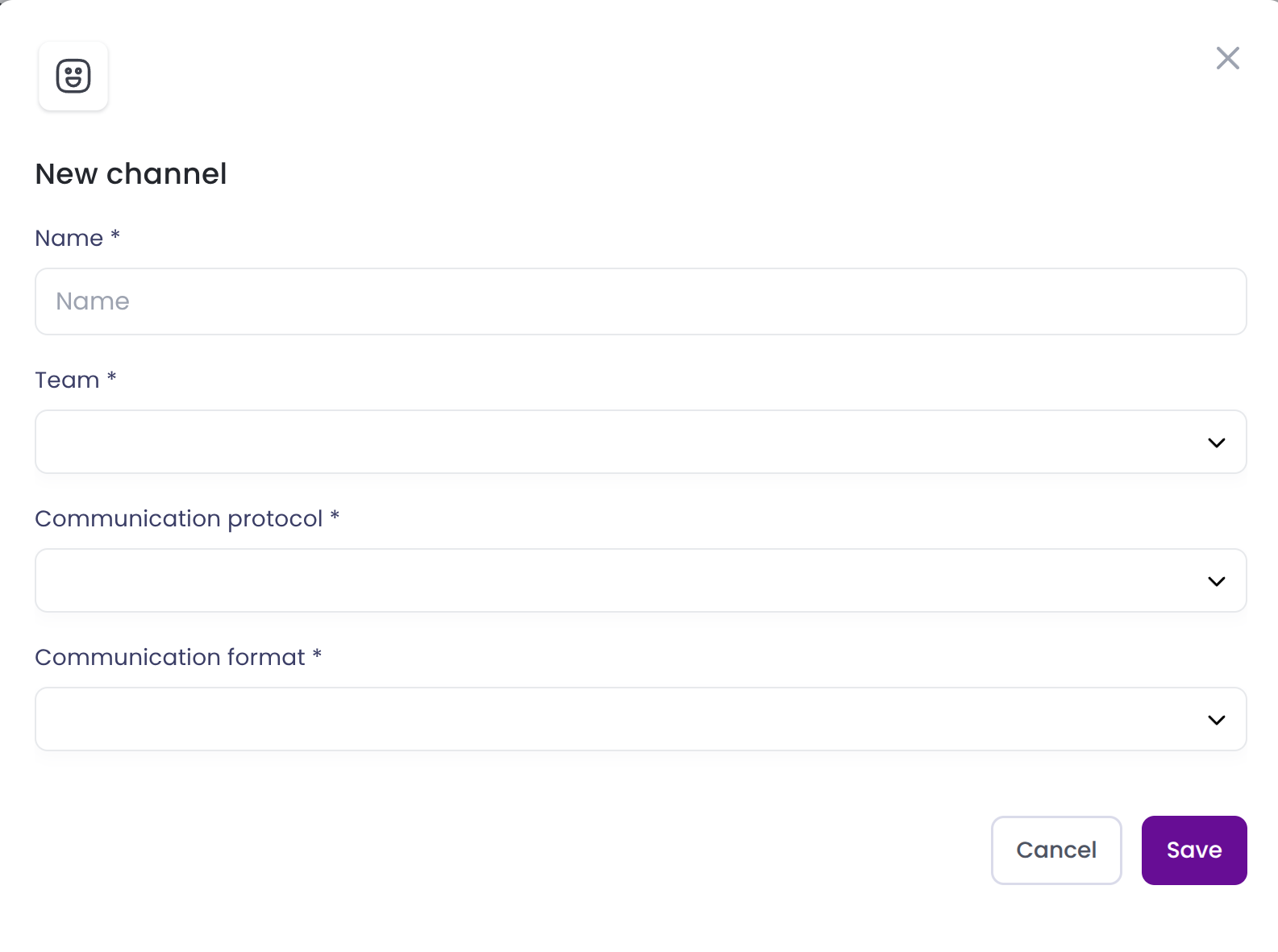
In the New communication channel form, enter a unique name for the setup.
-
Select the team from the dropdown menu that will use this fleet setup.
-
From the dropdown, select one of the supported Communication protocol: between the new fleet and the FMS:
- MQTT_IoT: Used for IoT devices that communicate using MQTT protocol.
- MQTT_SDK: Used for vehicles that uses MQTT communication protocol defined and supported in Meili SDK - MQTT client.
- MQTT_VDA5050: Used for vehicles that support VDA5050.
- WS_SDK: Used by vehicles that communicate with Meili FMS using websocket protocol, defined and supported in Meili SDK - Websocket client.
- OPC_UA: Used For IoT devices that uses OPC protocol. It is necessary to install MQTT-OPC bridge provided by Meili to enable this type of communication. For more information go to OPC -devices
-
From the dropdown, select one of the supported Communication formats:
- RAW: unprocessed data.
- YAML: human readable data serialization format_
- JSON: JavaScript Object Notation, used to send structured M2M data.
- XML: eXtensible Markup Language, used for complex configurations.
-
Choose a Setup type from the dropdown menu. This defines the configuration settings that your fleet will adhere to.
- Vehicles: For Robots
- Device Model: IoT
These selections determine how your fleet will communicate within your organisation.
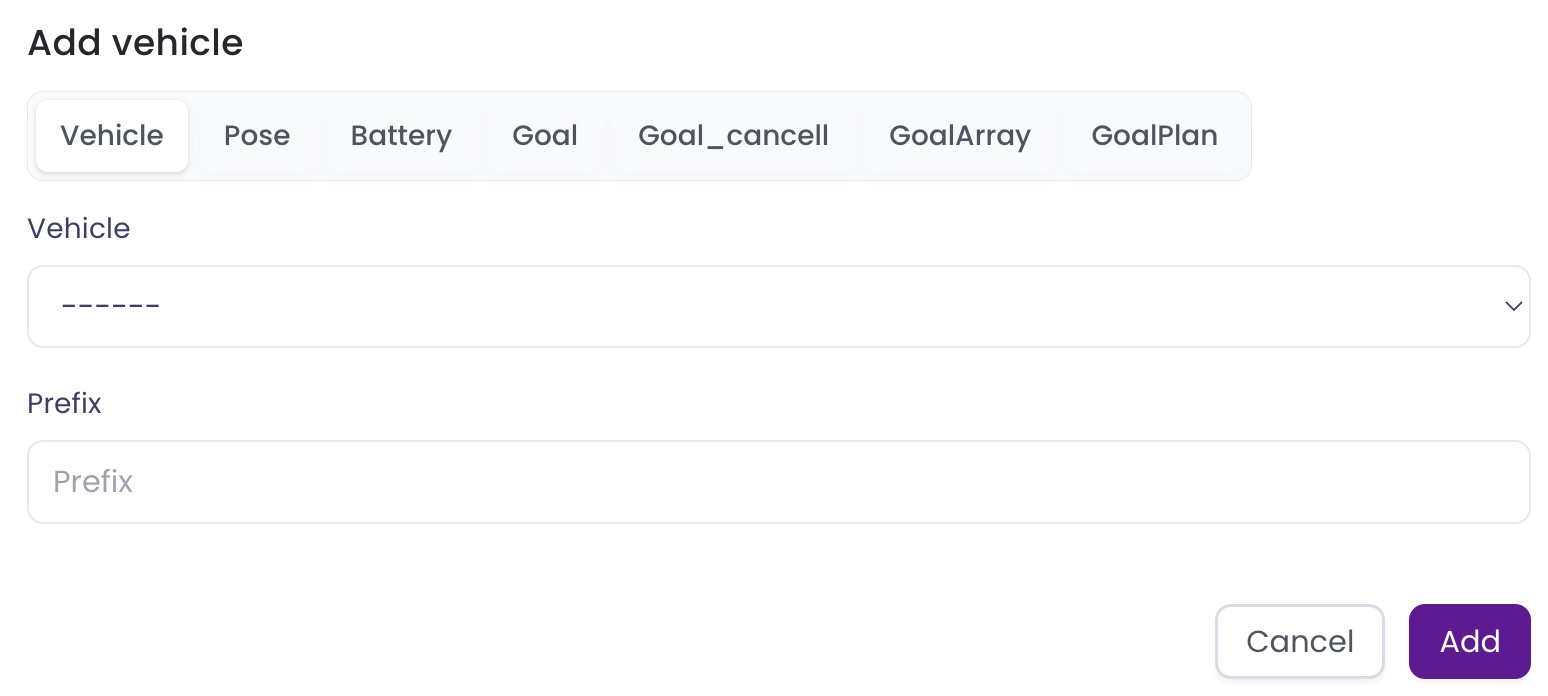
Step 3: You need to add vehicles or devices to the fleet depending on the selected Setup Type.
- Vehicles:
- Device Model:
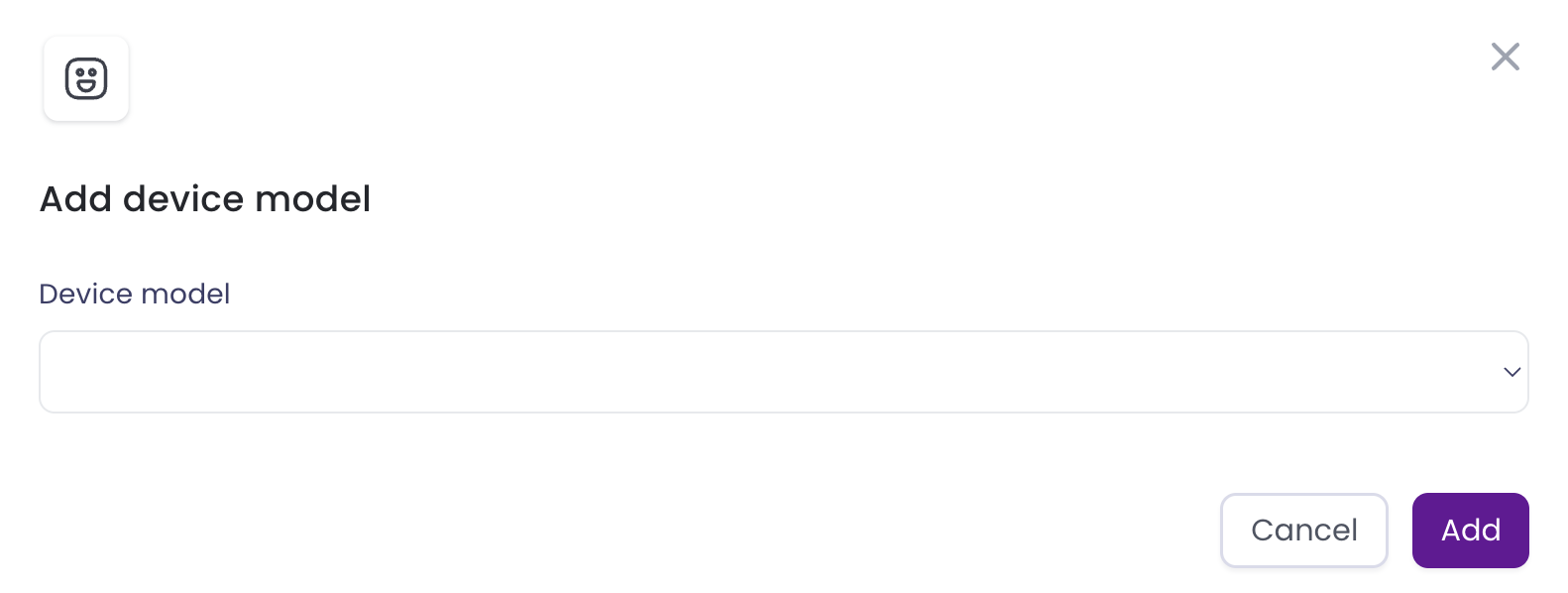
Step 4:
Once added, the vehicle or the devices will be listed on the form
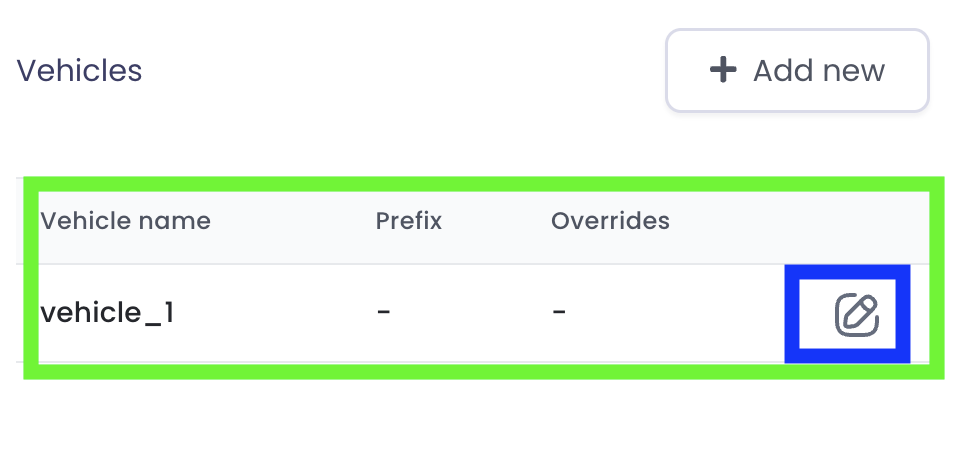
Step 5: If the Setup Type is vehicle, you can configure the different ROS topics that will be sent to the FMS by clicking on the settings button (In the blue square in the image above)
Note The ROS topics’ names and message type are set by default:
| Command | Description | Message type |
|---|---|---|
| pose | /amcl_pose | geometry_msgs/PoseWithCovarianceStamped |
| battery | /battery_state | sensor_msgs/BatteryState |
| goal | /move_base_simple/goal | geometry_msgs/PoseStamped |
| goalArray | /move_base/status | actionlib_msgs/GoalStatusArray |
| goal_cancel | /move_base/cancel | actionlib_msgs/GoalID |
Step 6:
- Click Save to add the new communication channel setup to your organisation’s overview.
- Your new communication channel and pin will be listed on the main Communication channel table.