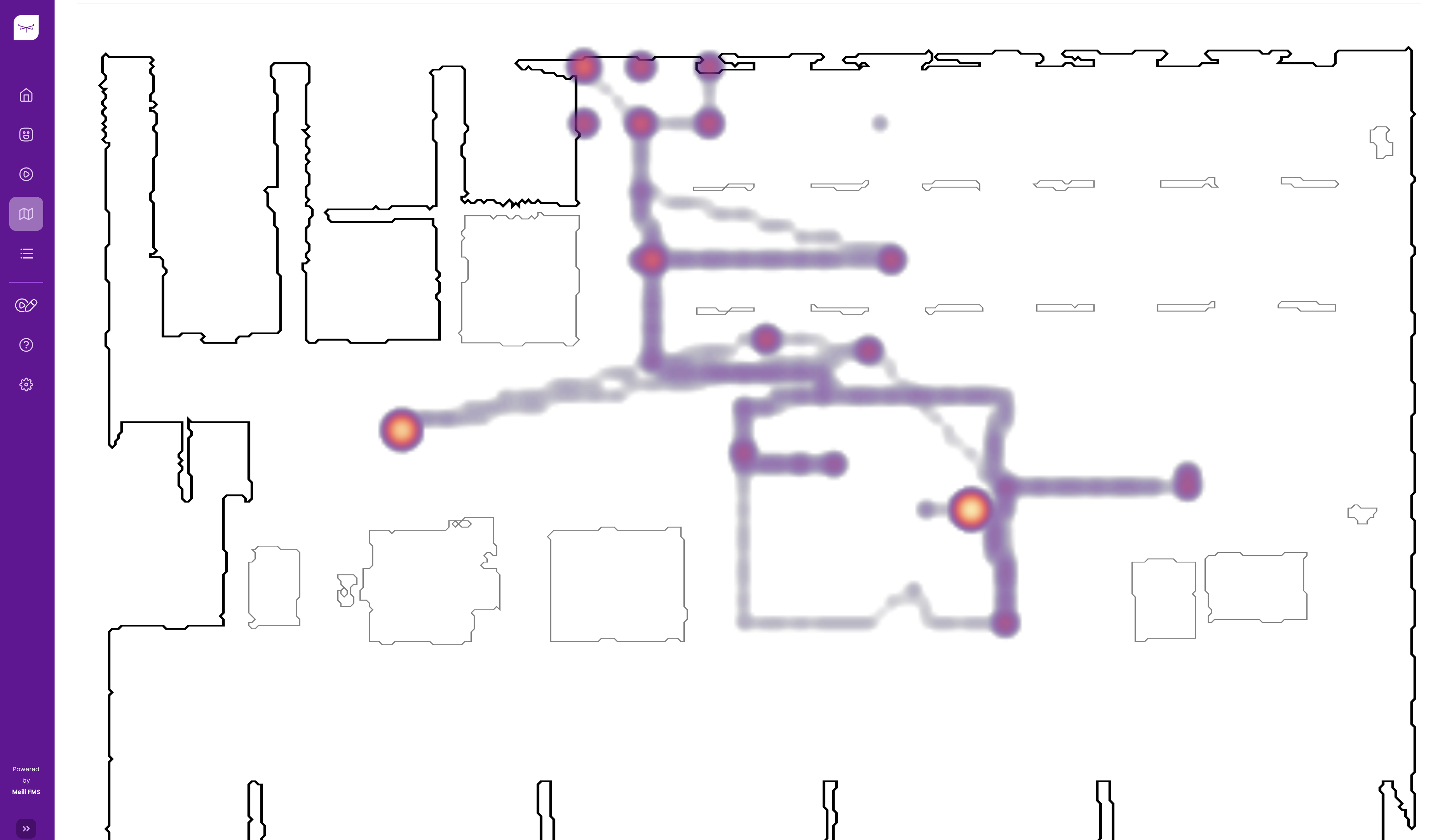
Heat maps#
Heat map visualisation#
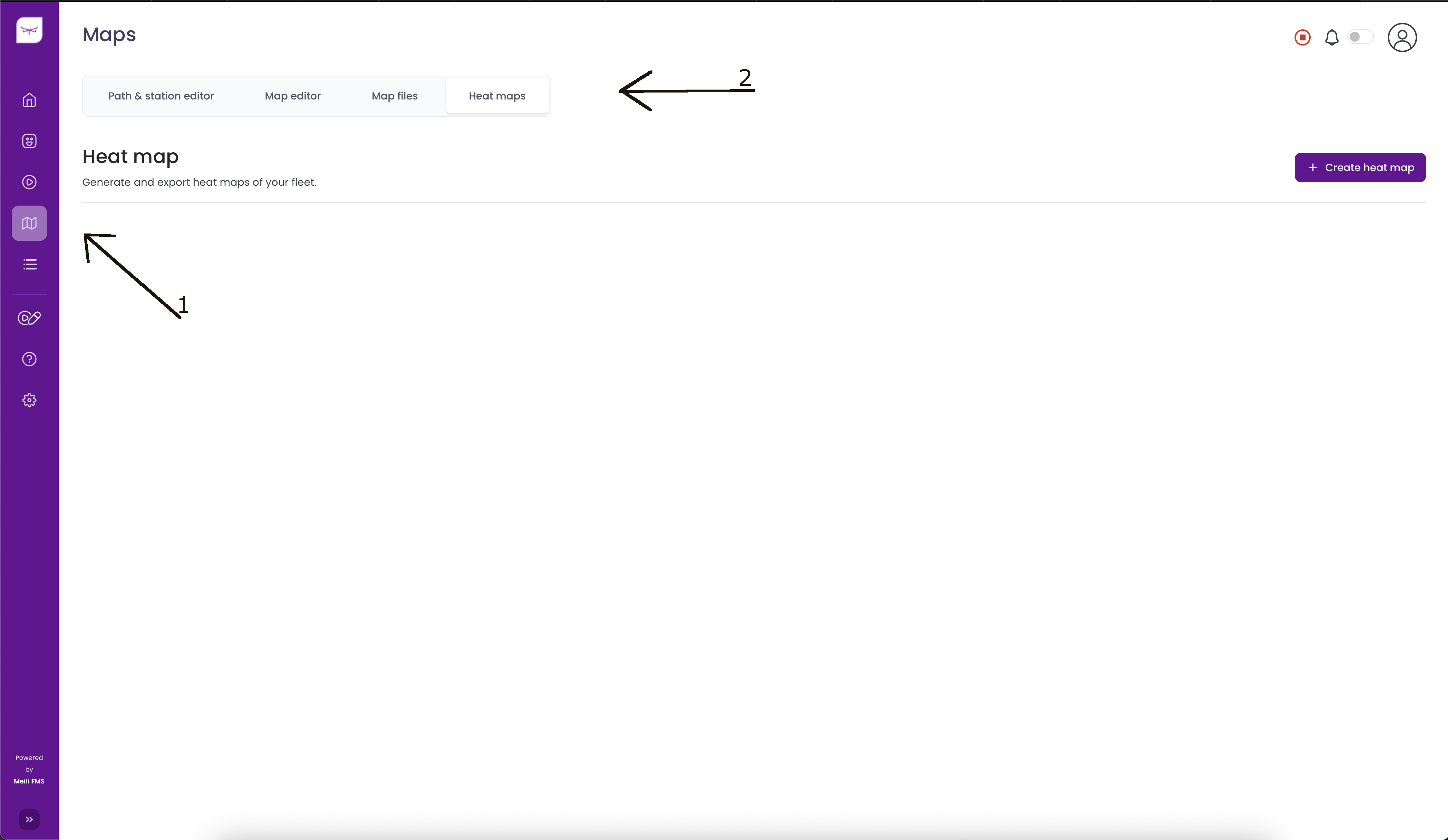
- Navigate to the Heat maps tab in the Maps selection
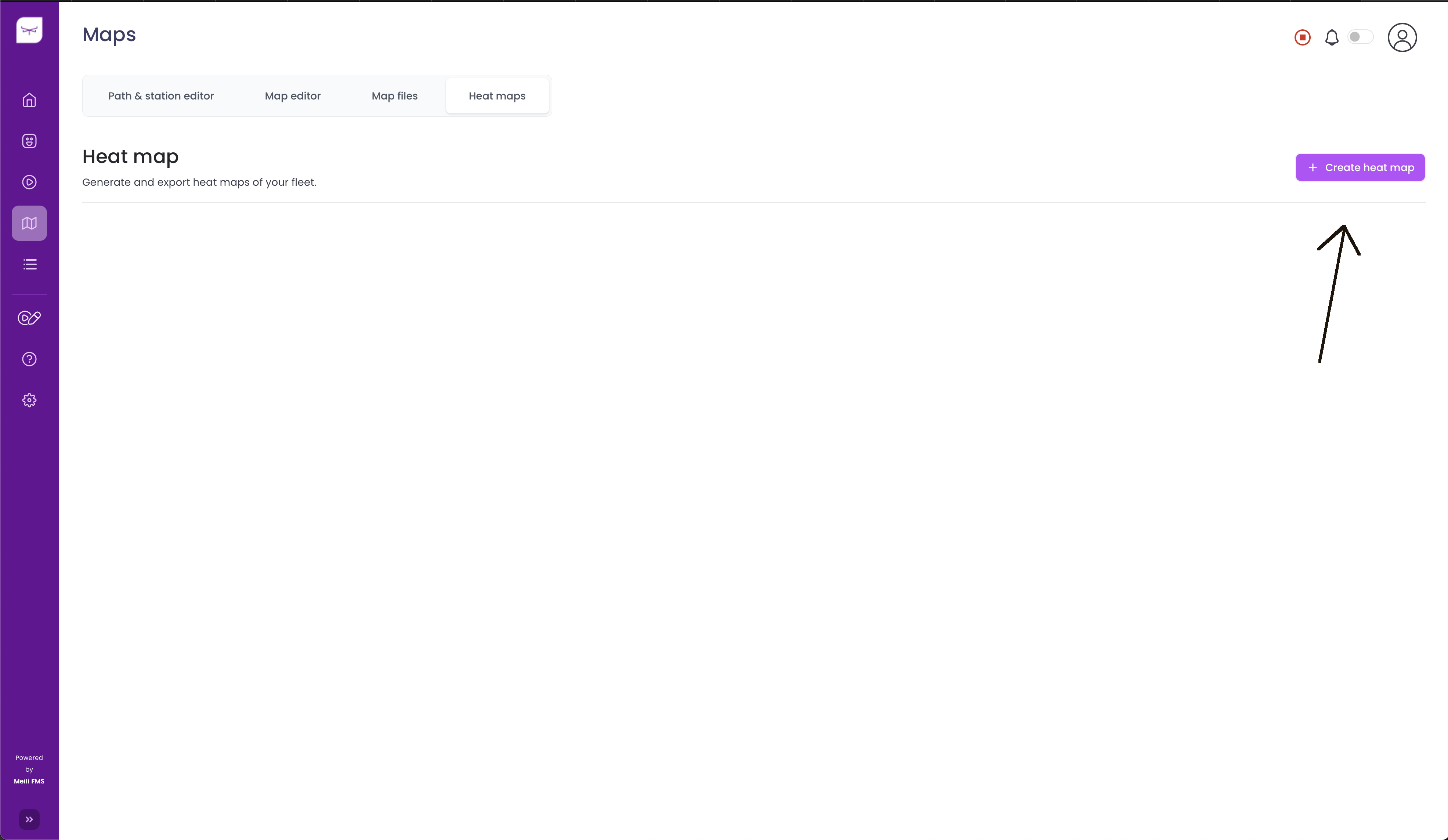
- Click on “Create heat map” button located on the right side
- Complete the form details. This will generate a custom heat map based on your requirements.
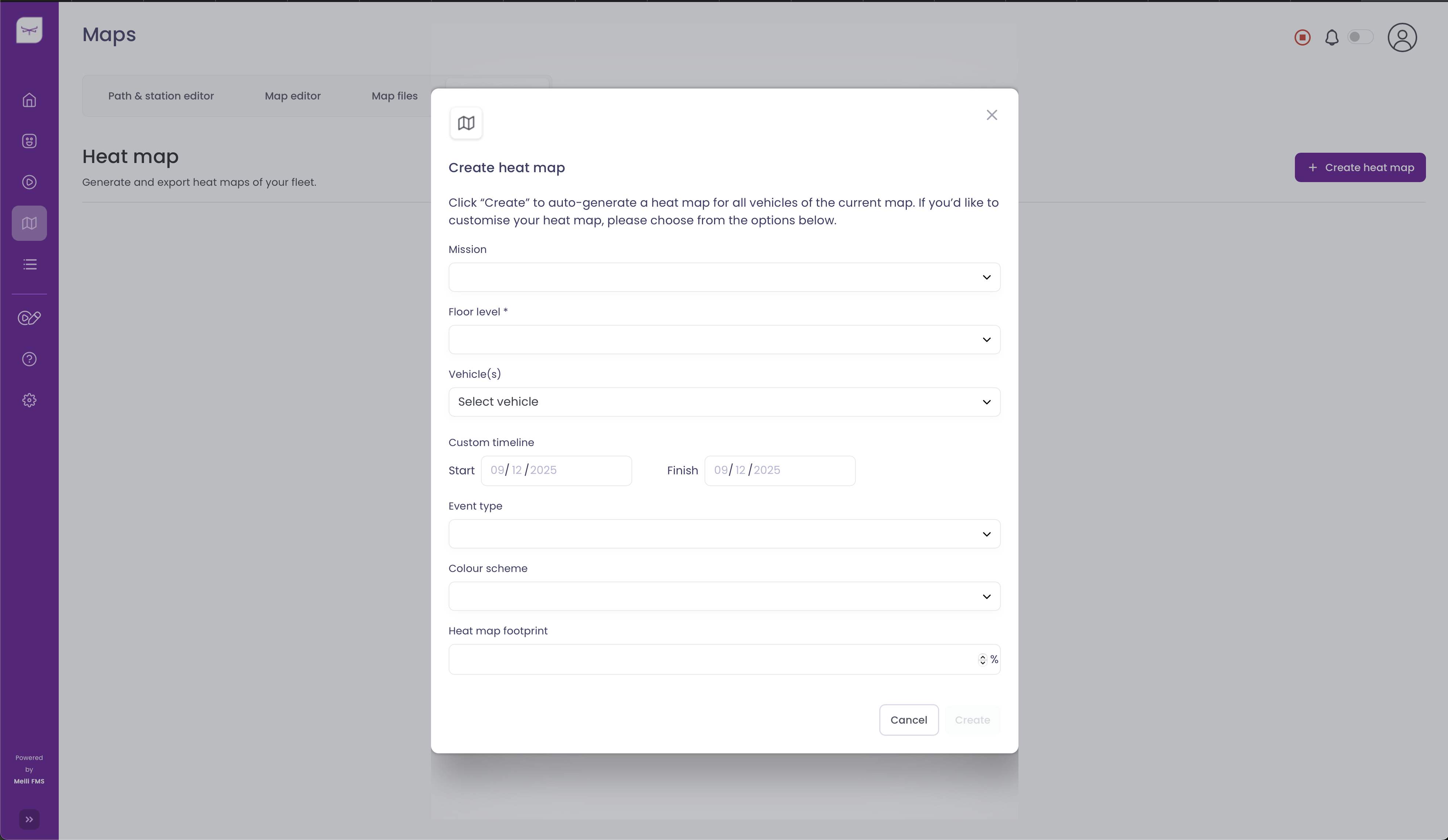
Heat map generation#
Below you can see the description of each field found in the heat map generation popup.
- Mission: Optionally, a mission from the available list can be specified, for which to generate a heat map.
- Floor level*: Heat maps can only be generated one floor at a time. Specify for which level to generate the heat map.
- Vehicle(s): An optional list of one or more vehicles, only for which the heat map should be generated.
- Custom timeline:
- Start: A starting point for the timeline (optional).
- Finish: A finish point for the timeline (optional).
- Event type: Optionally select either a dynamic event (described by samples where the vehicle was moving) or static event (described by samples where the vehicle was static)
- Colour scheme: A selection defining the colors used to generate the heatmap. Defaults to magma.
- Heat map footprint: The footprint of the points on the map (in percentage) in relation to the original map.
Heat map example#
Below is an example of the expected heatmap generation result.